A tour of your dashboard
Find your way around the admin: catalog, orders, design, settings, and the two AI helpers that run alongside you.
Your dashboard is where you run your whole store. Everything lives in a sidebar on the left, grouped into a few simple areas so you always know where to look.
The sidebar
The sidebar is your main menu. It stays with you as you move around, and it's organized from the everyday essentials at the top down to setup and settings at the bottom. Here's what each area is for.
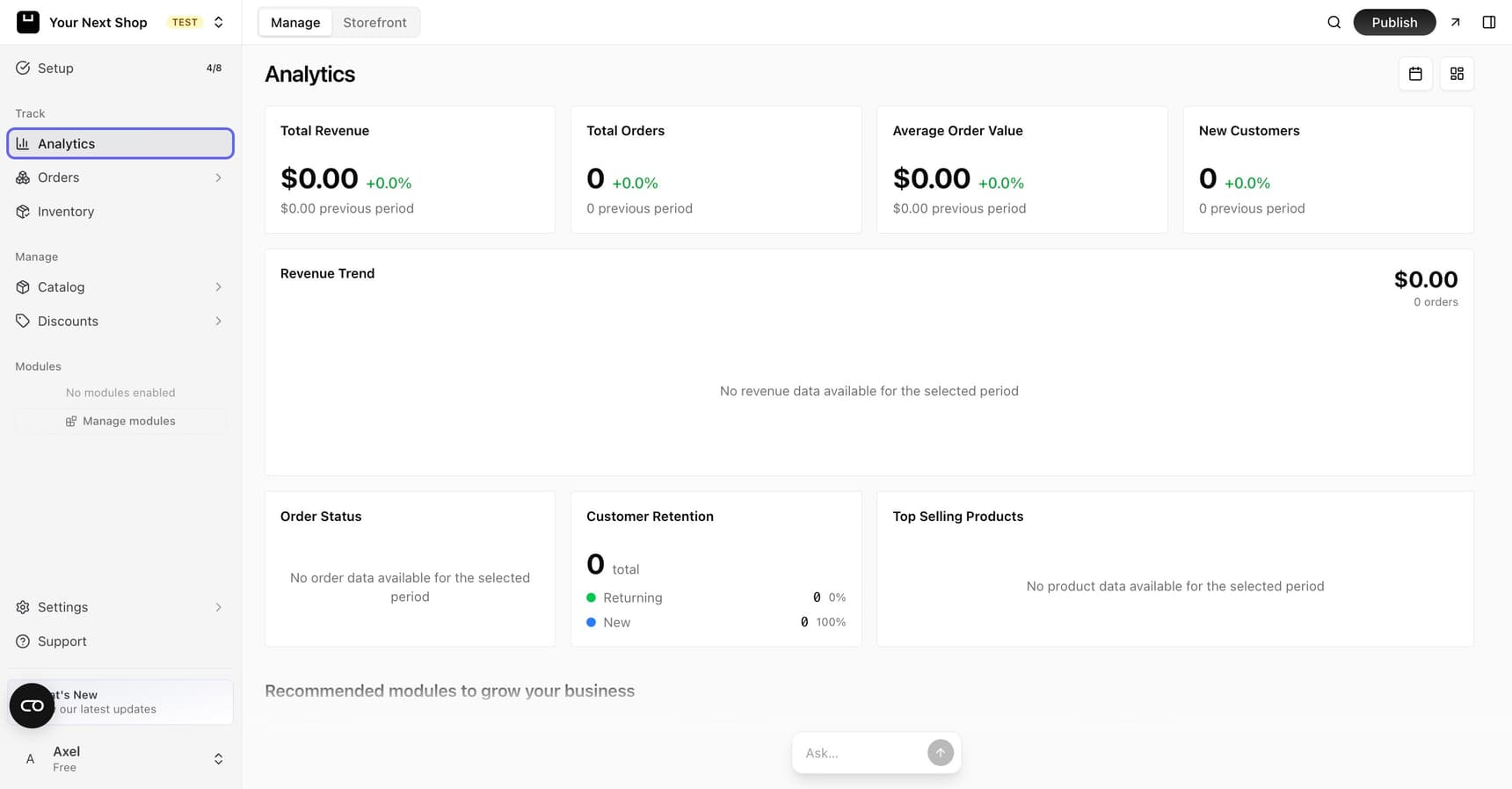
Home and setup
Your starting point. This is where you get an overview of your store and find your setup checklist – the short list of steps to get ready to sell. If you're ever unsure what to do next, start here.
Track: analytics, orders, and inventory
This is the "what's happening" section of your store:
- Analytics – see your sales, visitors, and how your store is doing over time. See Understand your analytics.
- Orders & customers – view and manage every order, then ship them. See Manage orders and Customers.
- Inventory – keep an eye on stock levels. See Manage inventory.
- Issues – anything that failed quietly, like a label or an invoice. See Spot and fix store issues.
Manage: products and discounts
Where you build your catalog and run offers:
- Products – add and edit what you sell, plus collections, categories, brands, and bundles. Start with Add a product.
- Discounts – set up coupons and discounts and promotions.
Modules
Optional features you can switch on to grow your store, including your blog, newsletters, product reviews, wishlists, subscriptions, extra languages and currencies, and a loyalty program. Turn on only what you need – you can always add more later. See Turn features on and off with Modules.
Design
Where you shape how your store looks. Just describe what you want and the AI design builder makes the change for you. This is also where you pick a theme and set your logo and branding.
Settings
Your store's details, payments, checkout, shipping, taxes, emails, legal and compliance, team, add-ons, and API access. See General settings.
Support
At the bottom of the sidebar, Support is where you open a case with the YNS team and follow the replies. See Get help and support.
Your two AI helpers
A chat panel is available across your dashboard. It shows the AI Assistant everywhere you work, and when you open the Design area the same panel switches to the AI design builder:
| Helper | What it does | Best for |
|---|---|---|
| AI Assistant | Runs your store by chat | Adding or editing products, finding orders, changing settings, answering "how do I…" questions |
| AI design builder | Designs how your store looks | Layout, colors, fonts, sections, pages, and images |
A simple way to remember it: the AI Assistant changes what your store does, and the AI design builder changes how it looks. Between them, most everyday tasks can be done just by typing what you want.
Tip: New here? Walk through your setup checklist and you'll touch most of these areas in order. When you get stuck, ask the AI Assistant – it can do many of the steps for you.
FAQ
Where do I find a specific feature?
Use the sidebar's grouping as a guide: everyday activity lives under Track, your catalog and offers under Manage, optional growth features under Modules, and your store's configuration under Settings. If you can't find something, ask the AI Assistant.
What's the difference between the two AI helpers?
The AI Assistant runs your store by chat – products, orders, settings. The AI design builder handles how your store looks – layout, colors, and sections. Use whichever matches your task.
Does the dashboard work on my phone?
Yes. You can manage your store on a phone or tablet, not just a computer – handy for checking orders or stock while you're away from your desk.
What's next
- Get your store ready with the setup checklist.
- Meet your AI Assistant and let it do the work.
- Add your first product in Add a product.