View and manage orders
Find orders, understand every status, read an order's details, and keep your daily workflow tidy.
Every purchase from your store turns into an order you can track, review, and act on. Your Orders area is where you'll spend a lot of your time once sales start coming in, so it's worth getting comfortable with how it works.
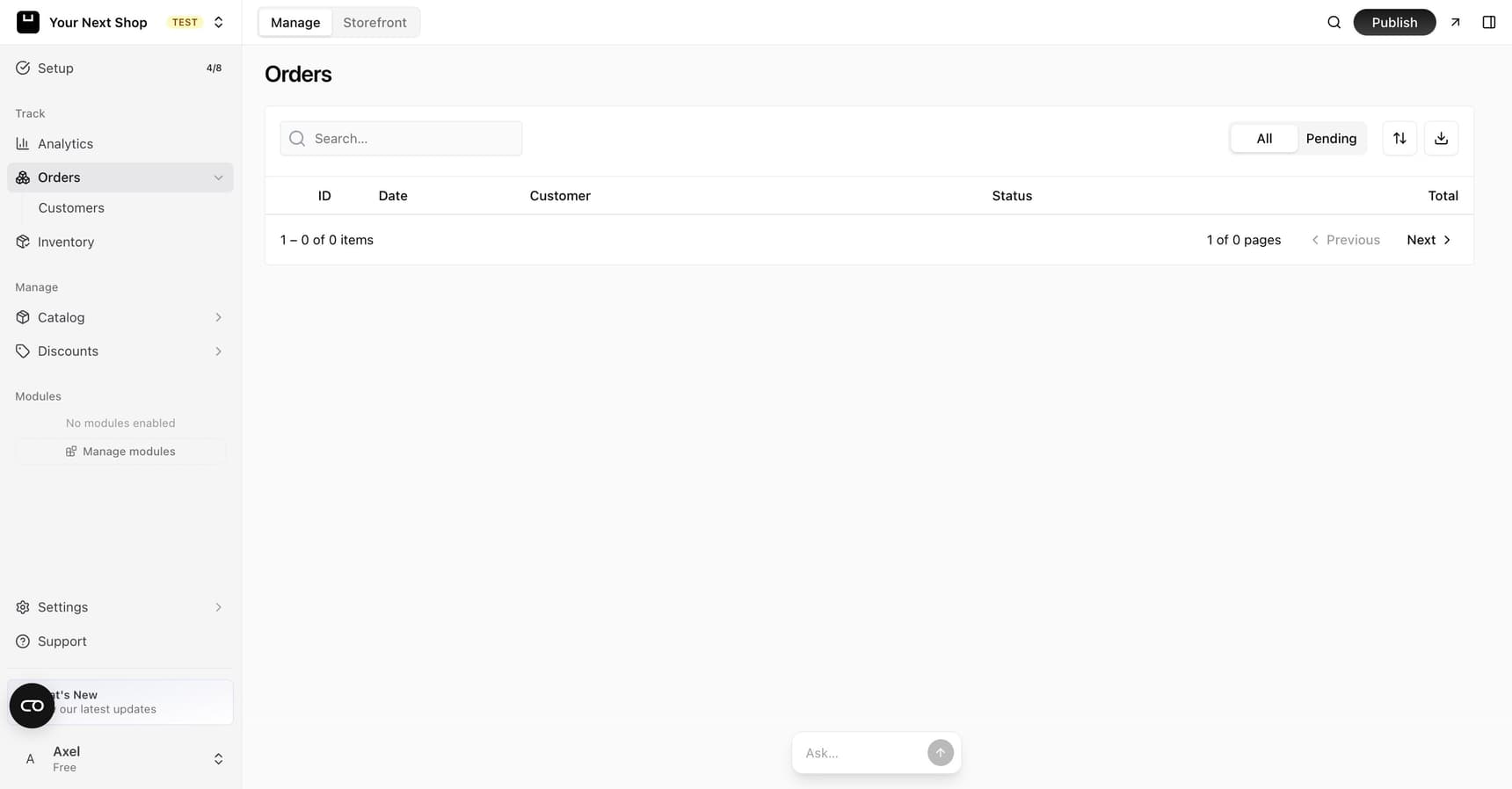
Where your orders live
Open the Orders section from your dashboard to see every order in one list. Each row shows the basics at a glance so you can scan the list quickly:
| Column | What it tells you |
|---|---|
| Order number | A unique reference for the purchase – handy when a customer gets in touch |
| Date | When the order was placed |
| Customer | Who bought, so you can recognize repeat shoppers |
| Status | Where the order is in its journey, from paid to completed |
| Total | The full amount the customer paid, including shipping and tax |
Click any row to open the full order and take action on it.
Search and filter
As your order list grows, you'll want to narrow it down rather than scroll:
- Search by order number or customer name to jump straight to one order.
- Filter by status to focus on what needs attention – for example, paid orders that are waiting to be shipped.
Tip: Checking your unfulfilled orders first thing each day is a simple habit that keeps customers happy and your dashboard accurate.
Tip: Do it with AI – ask the AI Assistant something like "find Jane's order from Tuesday" or "show me orders that haven't shipped yet" and it will pull them up without you hunting through the list.
Understanding statuses
A status tells you where an order is in its journey. Knowing what each one means helps you decide what to do next.
| Status | What it means | What to do |
|---|---|---|
| Paid | Payment went through and the order is ready to fulfill | Pack it and mark it shipped |
| Awaiting shipment | The order is paid and waiting to be packed and sent | Get it ready and mark it shipped |
| Shipped | You've sent the order to the customer | Wait for it to wrap up; nothing needed |
| Completed | The order has run its full course | Done – no action needed |
| Cancelled | The order was cancelled | No fulfillment needed |
| Refunded / Partially refunded | Some or all of the order has been refunded | Check the order to see how much was returned |
| Reserved | Stock is set aside but the order hasn't been paid yet – mainly wholesale orders awaiting payment | Wait for payment, or mark it paid yourself |
Note: A "Paid" status means the money has cleared through Stripe and it's safe to send the goods. Until an order is paid, hold off on shipping.
What an order detail shows
Click any order to open its full detail view. There you'll find everything about that purchase in one place:
- The customer and their contact details, so you can reach out if you need to.
- The items ordered, with quantities and prices.
- The totals – subtotal, shipping, tax, and the amount paid.
- The shipping address the order is going to.
- The payment status, so you know the money has cleared before you ship.
- The fulfillment status, showing whether it's been sent yet.
From this view you can move the order forward – mark it shipped, or issue a refund if something's gone wrong.
Download an order as a PDF
Sometimes you need to hand a delivery or consignment partner a list of what's in a shipment without issuing a formal invoice. Open the order and download its Order PDF from the sidebar, next to your invoice actions — a numbered list of the items, quantities, and totals, with no invoice number or tax columns. If you need a proper invoice instead, see Generate invoices.
Exporting your orders
You can export your orders to a file, which is useful for your own bookkeeping, sharing figures with an accountant, or keeping an offline backup of your sales. Exporting doesn't change anything in your store – it simply gives you a copy of the data.
Common questions and good habits
- Don't ship before an order is paid. Always confirm the payment status first.
- Keep statuses up to date. Marking orders shipped as you go keeps the customer informed and your numbers trustworthy.
- Use search instead of scrolling. Once you have lots of orders, the search box and status filter are far faster than reading the whole list.
FAQ
Why can't I find a recent order?
Make sure you've cleared any status filter that might be hiding it, then search by the customer's name or the order number. If a checkout was started but never paid, it won't appear as a completed order. You can also ask the AI Assistant to find it for you.
What's the difference between paid and completed?
"Paid" means the money has cleared and the order is ready for you to pack and send. "Completed" means it has run its full course. Shipped sits in between – you've sent it, but it hasn't wrapped up yet.
How do I give a customer their money back?
Open the order and issue a refund – full or partial. The money is returned through Stripe to the original payment method. See Issue refunds and handle returns for the full walkthrough.
What's the difference between an Order PDF and an invoice?
An Order PDF is a plain item list — quantities and totals, no invoice number, no tax breakdown — handy for a delivery or consignment partner. An invoice is the numbered, sequential legal document for your books and your customer. See Generate invoices.
What's next
- Ready to send an order? See Fulfill and ship an order.
- Need to give money back? See Issue refunds and handle returns.
- Want to look up a buyer? See Manage your customers.
- Let AI do the digging for you with the AI Assistant.