Send newsletters & grow subscribers
Collect email subscribers and send campaigns that bring customers back to your store.
Email is one of the most reliable ways to bring customers back. With YNS you can collect email subscribers and send them newsletters about new products, sales, and updates.
Why email still wins
Social posts come and go, and ads stop the moment you stop paying. Your email list is different — it's an audience you own and can reach any time. People who hand over their email address are telling you they want to hear from you, which makes them some of your most likely buyers.
Collect subscribers
There are two main ways to grow your list:
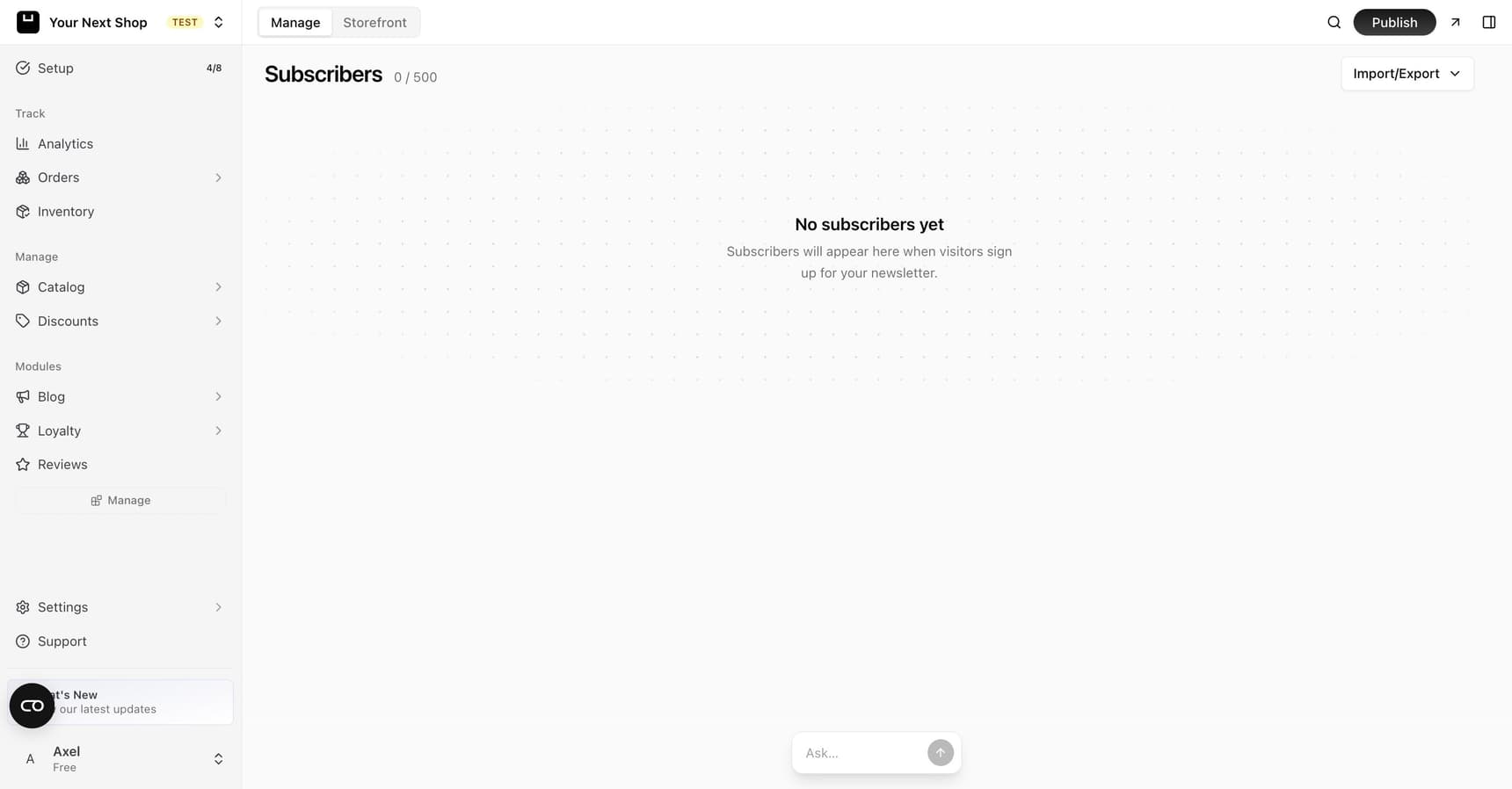
- Signup on your storefront — a sign-up box appears on your store so visitors can join your list with their email address. New subscribers show up automatically on your Subscribers page.
- Import a list — already have emails from another tool or a spreadsheet? You can bring your existing contacts in so they don't get lost.
Note: Only add people who have agreed to hear from you. Sending to contacts who never opted in can hurt your reputation and your delivery — and in many places it's against the law.
Ways to encourage sign-ups
- Give a reason to join — a discount on the first order or early access to sales works well.
- Ask at the right moment — around checkout and on your blog, when interest is already high.
- Keep it short — asking only for an email address gets far more sign-ups than a long form.
See where each subscriber came from
Every subscriber carries a source, shown as a coloured badge in the list and on their detail panel.
| Source | Who it is |
|---|---|
| Popup | Signed up through the Newsletter Popup |
| Form | A signup box on your storefront — footer, newsletter block — or your own integration through the API |
| Checkout | Opted in while placing an order |
| Import | Brought in from a spreadsheet or another tool |
| Restock alert | Asked to be told when a sold-out product came back — see Send back-in-stock alerts |
Use the Source dropdown next to the status tabs to narrow the list to one of them — the quickest way to check whether the popup is earning its interruption, or how many people tick the box at checkout. Changing either filter returns you to the first page.
A subscriber's detail panel repeats the source and adds a Placement row when the signup form reported one, so you can tell two forms apart within the same source — the storefront's newsletter block records newsletter-block, and your own integrations can send whatever label you like through the API. Source is about where they joined: the welcome discount, if you run one, still goes to every new subscriber whatever their source.
Note: Older subscribers may show the wrong source. Existing records weren't rewritten when sources started being tracked, so a list imported long ago can still show as Form — anything imported since is tagged Import correctly.
A Restock alert subscriber only asked about one product — they aren't a newsletter opt-in, so campaigns skip them automatically. If the same person later signs up for real, their record is upgraded and they start receiving your campaigns from then on.
Note: If your signup form requires confirming by email (double opt-in) and someone never clicks the confirmation link, they stay pending — they can't receive campaigns and don't count against your plan's subscriber limit. Pending signups older than 30 days are removed automatically, unless they also carry a restock alert.
Organise subscribers into groups
Groups are labels you put on subscribers yourself, such as "VIP", "Wholesale", "Trade show 2026" or "Coffee lovers". One person can be in as many groups as you like. Use them to send a campaign to just the right people, or to leave some people out.
Create a group
On the Subscribers page, click Groups, then New group. Give it a short name and, if you like, a description so your team knows what it's for. Each group shows how many people are in it, and how many of them can actually receive email right now. Someone who unsubscribed, never confirmed their signup, or whose address bounced stays in the group but isn't counted as reachable.
You can rename a group or delete it at any time. Deleting a group only removes the label: the subscribers themselves stay on your list.
Add subscribers to a group
There are three ways to put people in a group:
- One at a time – open a subscriber's detail panel and pick their groups. You can create a new group right there too.
- Several at once – tick subscribers in the list, then choose Add to group or Remove from group.
- From a spreadsheet – add a column with group names to your CSV, then pick that column under Column with group names when you import. To put someone in several groups, separate the names with a semicolon, for example
VIP; Newsletter 2025. Groups that don't exist yet are created for you, and the import lists them before you confirm. You can also use Add every imported subscriber to to put the whole file into one or more groups.
Note: People who are already on your list keep their groups unless you choose Update existing when you import. Then they are added to the groups in the file too. Importing never takes anyone out of a group.
To see who's in a group, pick it from the group filter above the subscriber list, or click Show subscribers next to the group.
Remove a subscriber
Open a subscriber's detail panel and choose Remove subscriber to delete them from your list for good — handy for clearing out a test entry or pruning a mistaken import. This is different from an unsubscribe: someone who opts out keeps their record, marked unsubscribed, so you still have a history of who asked not to hear from you. Removing deletes the record outright, so save it for entries that shouldn't be on the list at all.
Get ready to send
The only thing a real send needs is your store address: anti-spam rules require a postal address in every campaign footer. Add it and you can send straight away.
You don't need your own domain to start. Until you add one, campaigns go out from a shared YNS address under your store's name (for example, "Your Store" <yourstore@mail.yns.store>), and when subscribers reply, the reply goes to your notification email. Big email tools like Mailchimp and Substack work the same way.
Sending from your own domain is still worth setting up. Mail from your own address looks more familiar to subscribers and reaches more inboxes. The campaigns page keeps a Send from your own domain checklist open until it's done:
| Step | What it does |
|---|---|
| Sending domain | Campaigns arrive from your own domain. Add it, then wait on DNS — propagation can take 24–48 hours. Until then, campaigns keep going out from the shared address. |
| Sender address | The address subscribers see in their inbox, and where their replies go, once your domain is verified. Until then, replies go to your notification email. |
| Store address | Anti-spam rules require a postal address in every campaign footer. |
If you press Send without a store address, the editor tells you what's missing. It never fails silently.
Once your domain is verified, the checklist goes away and campaigns go out from your own address automatically. If its DNS records are later changed or removed, campaigns switch back to the shared address instead of failing, and the checklist comes back.
Send an email campaign
Create a new campaign and work through the editor:
- Write your message – give it a subject line and build the email in the Visual editor, which shows the content the way subscribers see it. See Design the email below.
- Feature products — pick products from your catalog and they're added as cards, with image, price, and a link, so you don't have to build product blocks by hand.
- Choose your audience — see below.
- Test it — send a copy to yourself, or to any address you like, and check how it actually lands.
- Send now, or schedule it for a date and time.
Tip: Do it with AI — in the newsletter editor, use the AI generate button: give it a short brief like "announce our summer sale, 20% off, link to the new dresses" and it can generate a subject line and a full newsletter for you, even referencing your recent products. Review and tweak it, then send. It's the fastest way to go from idea to a finished campaign.
Design the email
The Visual tab is a what-you-see-is-what-you-get editor. Type straight into it and use the toolbar for headings, bold, italic, text colour and bullet lists. Insert adds the larger pieces:
| Insert | What it does |
|---|---|
| Image | Upload a picture or reuse one from your media library. Click the image to add alt text – a short description that screen readers read aloud and inboxes show when they block images – and, if you like, a link, so the whole picture is clickable. |
| Button | A call-to-action button such as "Shop now". Click it to change the text and where it goes. |
| Divider | A thin line between sections. |
| Two columns | Two blocks side by side, for example a product photo next to its description. Put text, images, buttons or lists in each. |
To link a word or a sentence, select it and click the link button. Type any address, or pick a product from your catalog and YNS fills in its page on your store. Buttons and images offer the same product picker.
Columns stack one under the other on phones, so nothing gets squeezed. Click inside the columns and turn off Stack on phones to keep them side by side at every width – handy for two small images, less so for long text. Remove columns keeps the content and puts it back in one column. Check both layouts with the computer and phone icons above the preview.
Prefer typing formatting by hand? The Text tab shows the same campaign as plain text with formatting marks, such as **bold** or [[Shop now]](https://…) for a button. Changes in one tab show in the other.
Choose your audience
Rather than always mailing everyone, pick who this particular campaign is for. Each option shows a live count, so you know how many people you're about to reach before you send.
| Audience | Who's in it |
|---|---|
| All subscribers | Everyone on your list who hasn't unsubscribed |
| Customers | Subscribers who have bought at least once |
| Repeat customers | Subscribers who have bought more than once |
| Never purchased | Subscribers who haven't bought yet |
| New signups (30 days) | People who joined in the last month |
Tip: The same announcement wants different words for each group. "Never purchased" is the audience for a first-order incentive; "repeat customers" is the one to give early access to, not another discount they'd have paid full price for.
Send to some groups, or leave some out
Under the audience, you can narrow the campaign further with your groups:
- Only subscribers in – pick one or more groups. Then choose In any of these groups (for example, VIP or Wholesale) or In all of these groups (VIP and Coffee lovers).
- Exclude subscribers in – anyone in these groups won't get this campaign, even if they match everything else. Handy for not sending a discount to wholesale buyers, or for skipping people who already got a similar email.
Groups always work together with the audience you chose above. "Customers" plus the group "VIP" means customers who are also in VIP. Unsubscribed, unconfirmed and bounced addresses never get a campaign, whatever group they're in.
The recipient count updates as you change groups, so you can see exactly how many people the campaign will reach before you send it. If a group used by a draft or scheduled campaign is deleted later, that campaign never ends up reaching more people than before: a deleted group you were sending to counts as empty, so check the recipient count again before sending.
Test before you send
Use the test send to mail yourself a real copy. It's the only way to catch the things a preview won't show you — a subject line truncated on a phone, an image that doesn't load, a link pointing at your draft. You can send the test to any address, so it's also how you get a colleague to sign off.
Schedule for later
Pick a date and time instead of sending immediately, and the campaign goes out on its own — you don't need to be at your desk, and the tab doesn't need to be open. Schedule at least five minutes ahead, so there's always a window to change your mind. A scheduled campaign shows its send time in the list and can be rescheduled or cancelled up until it fires.
Upload your own design (MJML)
If you design emails outside YNS – in an MJML editor, in code, or with an agency – you can send that design as it is instead of rebuilding it in the editor. MJML is a common format for responsive emails that look right in Gmail, Outlook and on phones.
- In the campaign editor, open the MJML file tab next to Visual and Text.
- Click Upload .mjml file, or drop the file onto the box. Files up to 512 KB work.
- YNS checks the file straight away. If something is wrong, you see each problem with its line number, for example "Line 12: mj-text cannot be used inside mj-section". Fix the file and upload it again – a campaign with errors can't be saved, tested or sent.
- Check the preview on the right. Switch between the computer and phone icons to see the desktop and mobile layouts.
- Send a test to yourself, then send or schedule the campaign as usual.
To change the design later, click Replace file and upload the new version. Remove takes the file away so you can build the campaign in the editor again.
The uploaded file is the whole email: it replaces the written message, the featured product cards and the standard footer. Images need a full web address that starts with https://, because files on your computer can't travel with the email. Upload them to your store or another host first and use that address in the file.
Personalise with merge tags
Put these tags anywhere in your MJML, and each subscriber gets their own values:
| Tag | Becomes |
|---|---|
{{subscriber_name}} | The subscriber's name |
{{subscriber_email}} | The subscriber's email address |
{{store_name}} | Your store's name |
{{store_url}} | Your storefront's address |
{{store_address}} | Your store's postal address |
{{unsubscribe_url}} | The subscriber's personal unsubscribe link |
Not everyone gives a name when they sign up. Add a fallback after a bar for those people: Hi {{subscriber_name|there}} greets Anna as "Hi Anna" and someone without a name as "Hi there". In the preview and in test copies, the tags are filled in with your own name and email.
Every campaign needs an unsubscribe link and your postal address. If your file has no {{unsubscribe_url}}, YNS adds your store address and an unsubscribe link at the bottom of the email for you. If you place the link yourself, make sure the footer also shows your postal address, for example with {{store_address}}.
After the upload, YNS also warns you about things that won't stop the send but are worth fixing: a tag it doesn't recognise (it would be sent as written), an image without a full web address, or an email so large that Gmail hides the end of it behind a "View entire message" link.
Unsubscribes are handled for you
Every campaign carries an unsubscribe link and the technical headers that let inbox providers offer a one-click unsubscribe. People who opt out are excluded from every future send automatically, and from your automated emails too. The welcome and discount-code reminder emails carry the same unsubscribe link, including when you use an HTML design for them. If your own HTML doesn't include {{unsubscribe_url}}, YNS adds a small unsubscribe link at the bottom; place the variable yourself to choose where it goes. In a test copy the link opens a sample page and doesn't unsubscribe anyone.
Don't be tempted to make unsubscribing hard. A clean exit is far better for your delivery than a subscriber who marks you as spam instead.
Anatomy of a good newsletter
| Part | Why it matters |
|---|---|
| Subject line | The first thing people see and the biggest factor in whether they open it. Keep it short, clear, and honest. |
| Opening line | Lead with the most interesting thing — don't bury it under a greeting. |
| One main message | A single, clear point lands better than a roundup of everything at once. |
| A clear link back | Always give readers one obvious reason to click through to your store. |
Tip: Keep newsletters short and useful. One clear message and one link back to your store works better than a long email with everything in it.
Tips for better newsletters
- Send on a regular rhythm so people remember you — but don't overdo it.
- Lead with the most interesting thing first, before people lose interest.
- Always give readers a reason to click back to your store.
- Write like a person, not a billboard — a friendly, plain tone gets more replies and clicks.
Common mistakes to avoid
- Sending too often — flooding inboxes is the fastest way to get unsubscribes.
- A vague subject line — if people can't tell what's inside, they won't open it.
- No clear next step — every email should make it obvious what to do next.
FAQ
How can AI help me write a newsletter?
Give the AI a short brief — the occasion, any offer, and which products to feature — and it can generate a subject line and the full body for you, drawing on your recent products. You stay in control: review it, adjust the wording, and send when it feels right. It turns a blank page into a near-finished campaign in seconds.
How often should I email my list?
Often enough that people remember you, but not so often they tune out. A regular rhythm — like a couple of times a month — works for most stores. Watch how people respond and adjust; if unsubscribes climb, ease off.
Can I send a campaign before my sending domain is verified?
Yes. While DNS is propagating, or if you never add a domain, campaigns go out from the shared YNS address under your store's name, and replies still reach you. Test emails come from the same address, so what you see is what subscribers get.
My scheduled campaign didn't go out.
It'll be marked failed in the campaign list, with the reason. The checks run again at the moment it fires, so a missing store address, an empty audience or a used-up monthly email allowance stops it there.
Can I import contacts I already have?
Yes. You can bring in existing contacts from a spreadsheet or another tool so they don't get lost. Only import people who have agreed to hear from you — sending to contacts who never opted in hurts your delivery and your reputation.
Can I send a campaign to only some of my subscribers?
Yes, in two ways that you can combine. Pick an audience such as Customers or Never purchased, then narrow it with groups: send only to people in certain groups, leave other groups out, or both. The recipient count shows how many people that adds up to before you send.
How do I add subscribers to several groups from a spreadsheet?
Add a column for groups to your CSV and write the group names in it, separated by a semicolon, like VIP; Wholesale. Don't use commas between names, because commas separate the columns. Groups that don't exist yet are created during the import.
Can I add images to a campaign?
Yes. Use the image button in the campaign editor's toolbar to upload a new image or pick one you've already used elsewhere in your store, then insert it into the message body alongside your text. If you upload an MJML design instead, its images need full https:// addresses.
Can I colour text in a campaign?
Yes. Select the text (or just place your cursor on a line) and use the colour picker in the toolbar – pick one of the preset swatches or enter any hex colour. It's a good way to make a discount code or a single word stand out, but a whole newsletter in colour reads worse than one that saves it for the one thing you want noticed.
Can I use an email I designed somewhere else?
Yes, if it's in MJML. Open the MJML file tab in the campaign editor and upload the .mjml file. YNS checks it, shows desktop and mobile previews, and fills in merge tags like {{subscriber_name}} for each subscriber. If the file has errors, you see them with their line numbers and the campaign can't be sent until you upload a fixed version. Plain HTML files can't be uploaded as campaigns yet.
How do I remove a subscriber?
Open their detail panel from the Subscribers list and choose Remove subscriber, then confirm. This permanently deletes the record — if someone simply wants to stop hearing from you, let them unsubscribe instead so the opt-out stays on file.
What makes people open my emails?
The subject line does most of the work. Keep it short, specific, and honest about what's inside — curiosity gaps and all-caps tend to backfire. A trusted sender name and a steady, useful rhythm also lift open rates over time.
What's next
- Give people more ways to follow you — see Add your social links.
- Create content worth sharing in your emails — see Write a blog.
- Turn first-time visitors into subscribers — see Welcome offers & signup popups.
- Reward your most loyal subscribers — see Run a loyalty program.