Add your social links
Show your social profiles in your store footer so visitors can follow and reach you.
Adding your social links lets visitors follow you, see your latest posts, and get in touch – all from your store. The links appear in your store footer, where shoppers expect to find them.
Why add social links
Your store and your social profiles work better together. Social links give shoppers more ways to connect – and each one is an opportunity to build a relationship beyond a single visit:
- Followers come back – someone who follows you on social media sees your posts and remembers your store.
- Proof you're real – active profiles reassure new visitors that there's a genuine business behind the store.
- Another way to reach you – some shoppers prefer to message on social or email rather than fill in a form.
Add your profiles
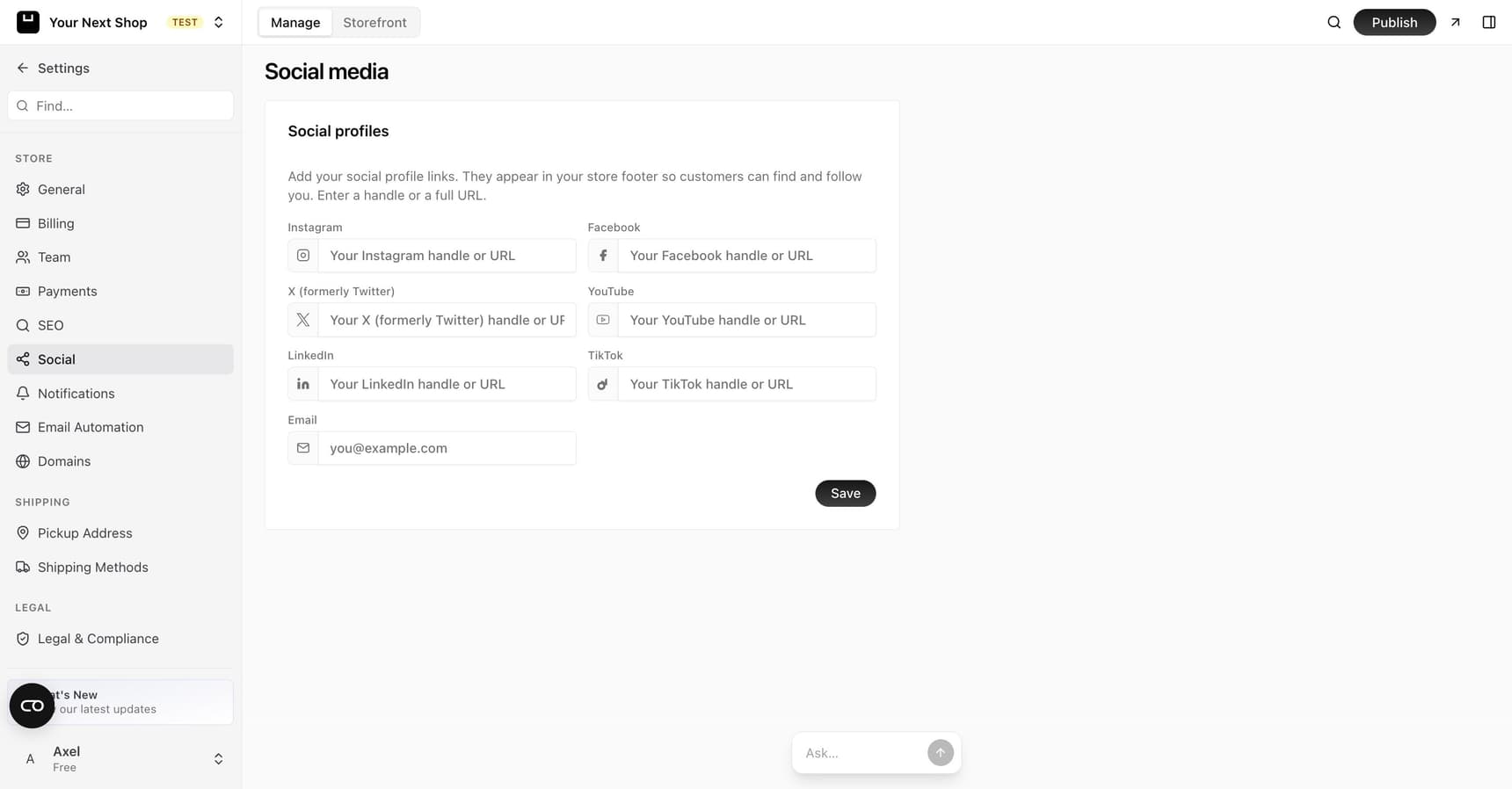
In your store settings, add the links to the profiles you use. YNS supports the most common ones:
| Platform | What to paste |
|---|---|
| The full link to your profile | |
| The full link to your page | |
| X | The full link to your profile |
| YouTube | The full link to your channel |
| The full link to your page or profile | |
| TikTok | The full link to your profile |
| The address customers can use to reach you directly |
You only need to fill in the ones you actually use – leave the rest blank and they won't show.
Tip: Paste the full link to each profile, not just your handle, so the buttons always point to the right place.
Where they appear
Once saved, your social links show up as icons in your store's footer on every page. Visitors can tap them to open your profiles in a new tab, so they don't lose your store while they explore.
Tips
- Only add profiles you keep active – a dead account looks worse than none.
- Double-check each link works before you finish.
- Use the same handle across platforms when you can, so you're easy to recognize.
- Add an email if you want a simple, direct way for customers to reach you.
Common mistakes to avoid
- Pasting a handle instead of a full link – the button may point nowhere or to the wrong place.
- Linking a neglected account – an empty or abandoned profile undermines trust.
- Filling in every field for the sake of it – only list the platforms you genuinely use and update.
FAQ
Which platforms should I add?
Only the ones you actually keep active. It's better to show two well-maintained profiles than six, half of which are empty. Leave the rest blank and they simply won't appear.
Why isn't my social icon showing up?
Most often the field is blank or the link isn't a full web address. Make sure you've pasted the complete link to your profile, not just your handle, and saved your changes. Then check the footer on your live store.
Should I add my email here?
If you want customers to be able to reach you directly, yes – an email link in the footer is a simple, familiar way for people to get in touch. Use an address you check regularly.
Do social links open in the same window?
No – they open in a new tab, so shoppers don't lose your store when they go to view a profile. They can browse your social page and come straight back.
What's next
- Polish how your store looks alongside your links – see Logo and branding.
- Give followers something to come back for – see Write a blog.
- Turn followers into subscribers – see Send newsletters & grow subscribers.