Set your logo and branding
Upload a logo, favicon, fonts, and colors so your store looks consistent and professional everywhere customers see it.
Your branding is what makes your store recognizably yours. Setting your logo, colors, and fonts gives your store a consistent, professional look everywhere customers see it – from the homepage to the checkout to the browser tab.
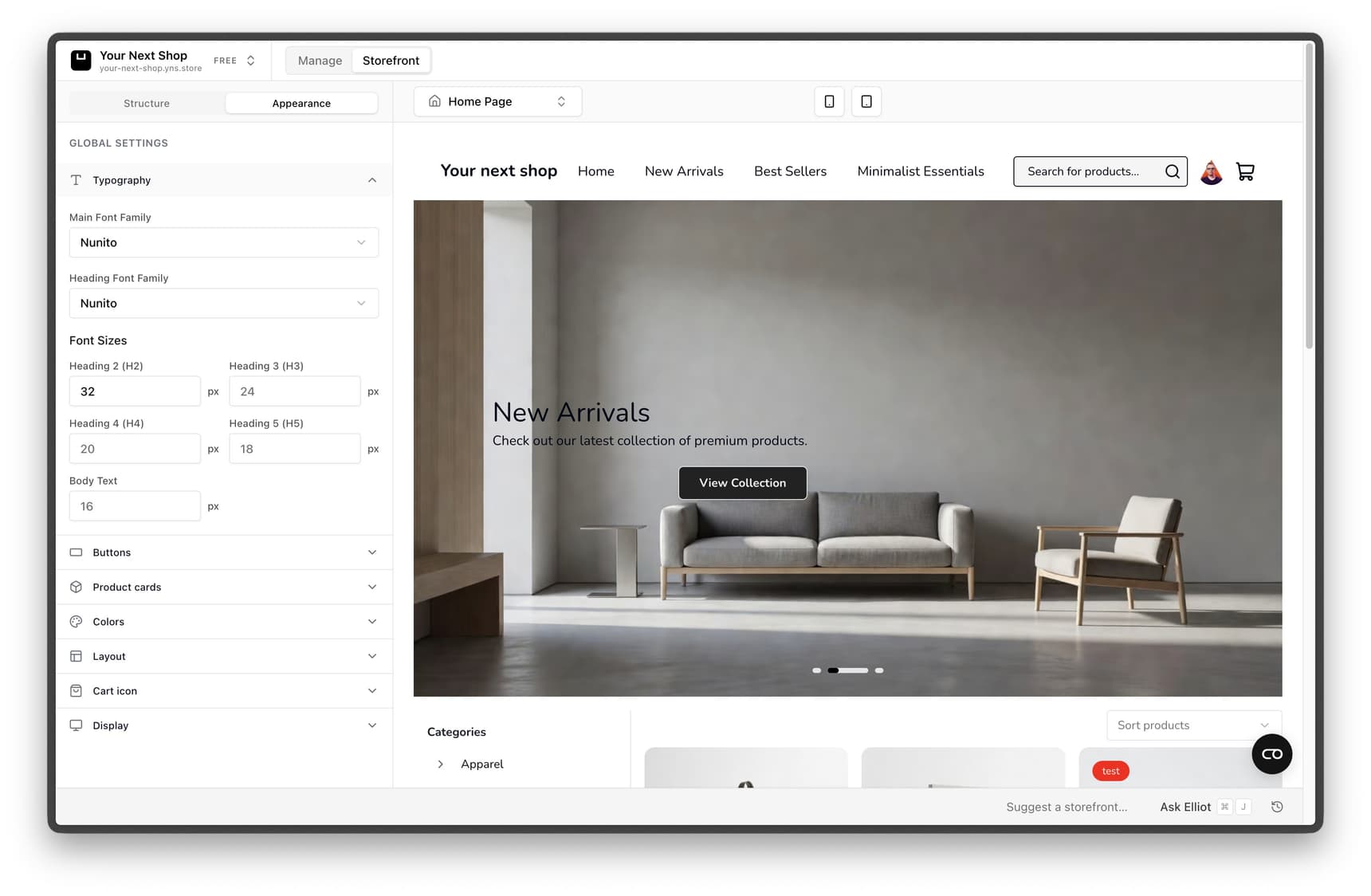
What you can set
| Item | What it does |
|---|---|
| Logo | Your brand mark, usually shown at the top of your store |
| Favicon | The small icon that appears in the browser tab |
| Fonts | The typefaces used for your headings and text |
| Colors | Your brand colors, used across buttons and accents |
| Social sharing image | The picture shown when your store is shared on social media |
Before you start
You'll have the smoothest time if you gather a few things first – but none of them are required to launch:
- A logo file, ideally with a transparent background so it sits cleanly on any color.
- Your brand colors, if you have them. Even one main color and one accent is enough to get started.
- A brand kit (a PDF or image of your brand guidelines), if you have one – you can hand this to Elliot and it will follow your colors, fonts, and logo automatically.
Tip: No logo or brand colors yet? You can launch without them and add them later. AI can also suggest a starting look for you, so a blank brand is never a blocker.
Step 1: Upload your logo and favicon
- Go to the branding settings in your dashboard.
- Upload your logo.
- Upload a favicon (a small, simple version of your logo works best).
- Save.
A favicon is tiny, so detailed logos rarely read well at that size. A single letter, monogram, or simple symbol from your logo usually works better than the full mark.
Tip: Don't have a logo yet? You can launch without one and add it later, or ask the AI design builder to help with your look.
Step 2: Set fonts and colors
Choose the fonts and brand colors that match your style. These apply across your whole store, so your buttons, headings, and links stay consistent.
A few pointers for choices that hold up:
- Pick fonts that are easy to read. A characterful font for headings paired with a plain, legible font for body text is a reliable combination.
- Keep your palette tight. One main color and one accent go further than a rainbow. Too many colors make a store feel busy.
- Mind contrast. Make sure text stands out clearly against its background so everything stays readable, including on phones.
Step 3: Set your social sharing image
Add a social sharing image so your store looks polished when someone shares a link to it on social media. Without one, shared links can look plain or pull in a random image. A clean image with your logo or a hero product makes a much stronger first impression.
Using a brand kit
If you already have brand guidelines – colors, fonts, and a logo set out in a document – you can upload that brand kit to the AI design builder as a PDF or image. The builder reads it and applies your brand automatically, so you don't have to enter each color and font by hand.
Tip: Do it with AI – try asking the AI design builder "use my brand colors everywhere", "match the fonts in this brand guide" (after uploading it), or "make the buttons use my accent color". It applies your branding across the whole store at once.
Keeping your branding consistent
Consistency is what makes a small store feel trustworthy. Aim to:
- Use the same logo across your store, emails, and social profiles.
- Stick to your palette rather than introducing new colors page by page.
- Reuse your fonts everywhere instead of mixing in new ones.
The AI design builder applies these globally, so a change you make to a color or font flows through your whole store at once – no need to update each page yourself.
FAQ
What's the difference between a logo and a favicon?
Your logo is the larger brand mark shown at the top of your store. Your favicon is the tiny icon in the browser tab. A simple version of your logo – often a single letter or symbol – works best as a favicon because it's shown so small.
Do I need a logo to launch?
No. You can open your store without one and add it later. AI can also help you create a look in the meantime, so a missing logo never has to hold up your launch.
What is a brand kit and how do I use it?
A brand kit is a document with your brand colors, fonts, and logo. Upload it to the AI design builder and it will apply your branding across the store automatically, instead of you setting each piece by hand.
Why does a random image show when I share my store?
That usually means no social sharing image is set. Add one in your branding settings, and your chosen image will appear whenever someone shares a link to your store.
Will my branding apply everywhere automatically?
Yes. Fonts and colors are global settings, so they carry across your whole store – buttons, headings, links, and pages – keeping everything consistent.
What's next
- Fine-tune your whole look with the AI design builder.
- Start from a ready-made style in Choose and apply a theme.
- Shape your homepage in Add pages and content.