Add pages and content
Create pages like About and Contact, and shape your homepage with content blocks that tell your story.
Beyond your products, your store can have its own pages and content – the words and sections that tell your story and help customers trust you. Good pages turn browsers into buyers by answering the questions they have before they reach for their wallet.
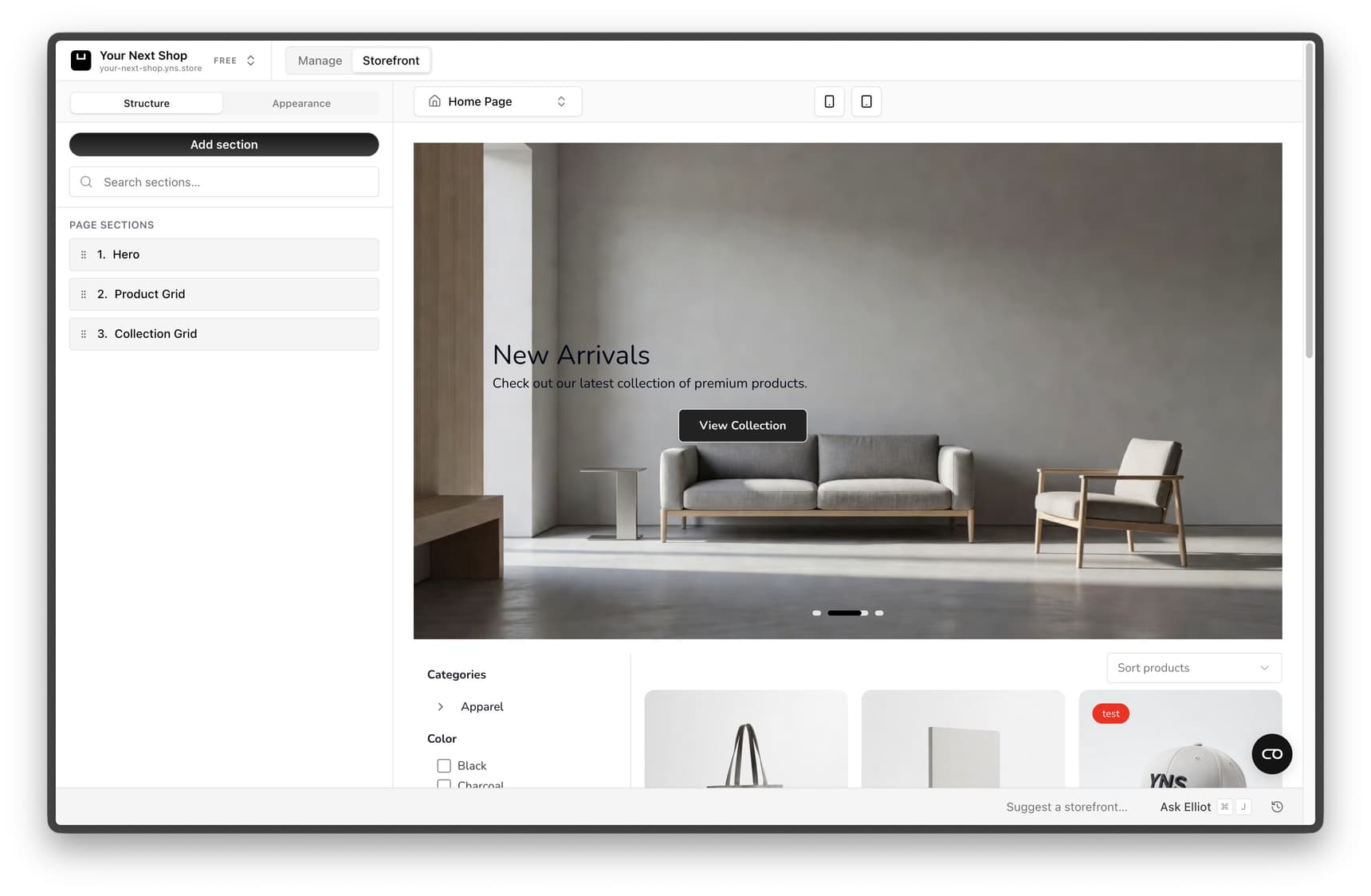
Two kinds of content
- Pages are standalone, such as About, Contact, or a FAQ. Each one lives at its own address and is something you link to from your menus.
- Content blocks are the sections that make up your homepage, like a hero banner, product grids, testimonials, or a newsletter signup. You arrange these to control what shoppers see first.
Pages worth adding first
You don't need many pages to look established. A few well-written ones go a long way:
| Page | Why it helps |
|---|---|
| About | Tells customers who you are and why you started – this builds trust, especially for newer brands |
| Contact | Gives shoppers a clear way to reach you, which reassures them before they buy |
| FAQ | Answers common questions about shipping, sizing, and returns so customers don't have to ask |
| Shipping & returns | Sets expectations up front and reduces support messages later |
Note: Your legal pages – privacy policy, terms, and refund policy – are handled separately. See Legal pages.
Step 1: Create a page
- Go to the pages area in your dashboard.
- Create a new page.
- Give it a title, such as "About us".
- Add your text and images.
- Save.
Once a page exists, you can add it to your menus so customers can find it – see Edit your navigation menus. A page that isn't linked from anywhere is hard for shoppers to discover.
Tip: Write in your own voice and keep it specific. "We hand-pour every candle in small batches in Portland" tells a better story than "We sell quality candles."
Step 2: Edit your homepage content
Your homepage is built from content blocks. You can edit them to add a welcome message, feature your best products, show customer testimonials, or invite shoppers to join your newsletter. The order matters: put your strongest section – usually a hero banner and your bestsellers – near the top, where every visitor sees it.
Common homepage blocks include:
- Hero banner – a large headline and image that sets the tone the moment someone arrives.
- Product or collection grids – show off bestsellers, new arrivals, or a featured collection.
- Testimonials or reviews – social proof that reassures new shoppers.
- Newsletter signup – capture visitors who aren't ready to buy yet.
Tip: Do it with AI – you can edit homepage content just by describing what you want with the AI design builder. For example, "add a section showing our three bestsellers", "add an FAQ page about shipping", or "move the testimonials above the product grid".
Step 3: Review and publish
Check how your pages and content look, then publish so customers can see them. Preview on a phone as well as a computer – most of your visitors shop on mobile, so make sure your text is readable and your images look good on a small screen.
Best practices
- Lead with what matters. Visitors decide in seconds whether to stay. Put your best products and clearest message at the top of the homepage.
- Keep pages focused. One job per page – an About page tells your story, a Contact page helps people reach you. Don't try to do everything on one page.
- Link your pages. A page only helps if customers can find it. Add it to your header or footer menu.
- Write for skimmers. Short paragraphs, clear headings, and a friendly tone are easier to read than dense blocks of text.
FAQ
What pages should every store have?
Most stores benefit from an About page, a Contact page, and a FAQ. These build trust and answer the questions customers have before buying. Your legal pages are added separately – see Legal pages.
How do I get a page to show up in my menu?
Create the page first, then add a link to it in your navigation menus. Pages don't appear in menus automatically.
Can I rearrange the sections on my homepage?
Yes. Your homepage is made of content blocks you can reorder, edit, add, or remove – either directly or by describing the change to the AI design builder.
Will my pages look right on mobile?
Yes – your store adapts pages for smaller screens automatically. It's still worth previewing on a phone, since that's where most of your customers will read them.
What's next
- Shape the look with the AI design builder.
- Link your new pages in Edit your navigation menus.
- Add your required policies in Legal pages.
- Share news and updates with a Blog.