Choose and apply a theme
Switch your store's whole look in one move with a ready-made theme, then fine-tune the details to match your brand.
A theme is a ready-made look for your store. Applying one is the fastest way to change your overall style without describing every detail yourself – a great way to find a starting point you love.
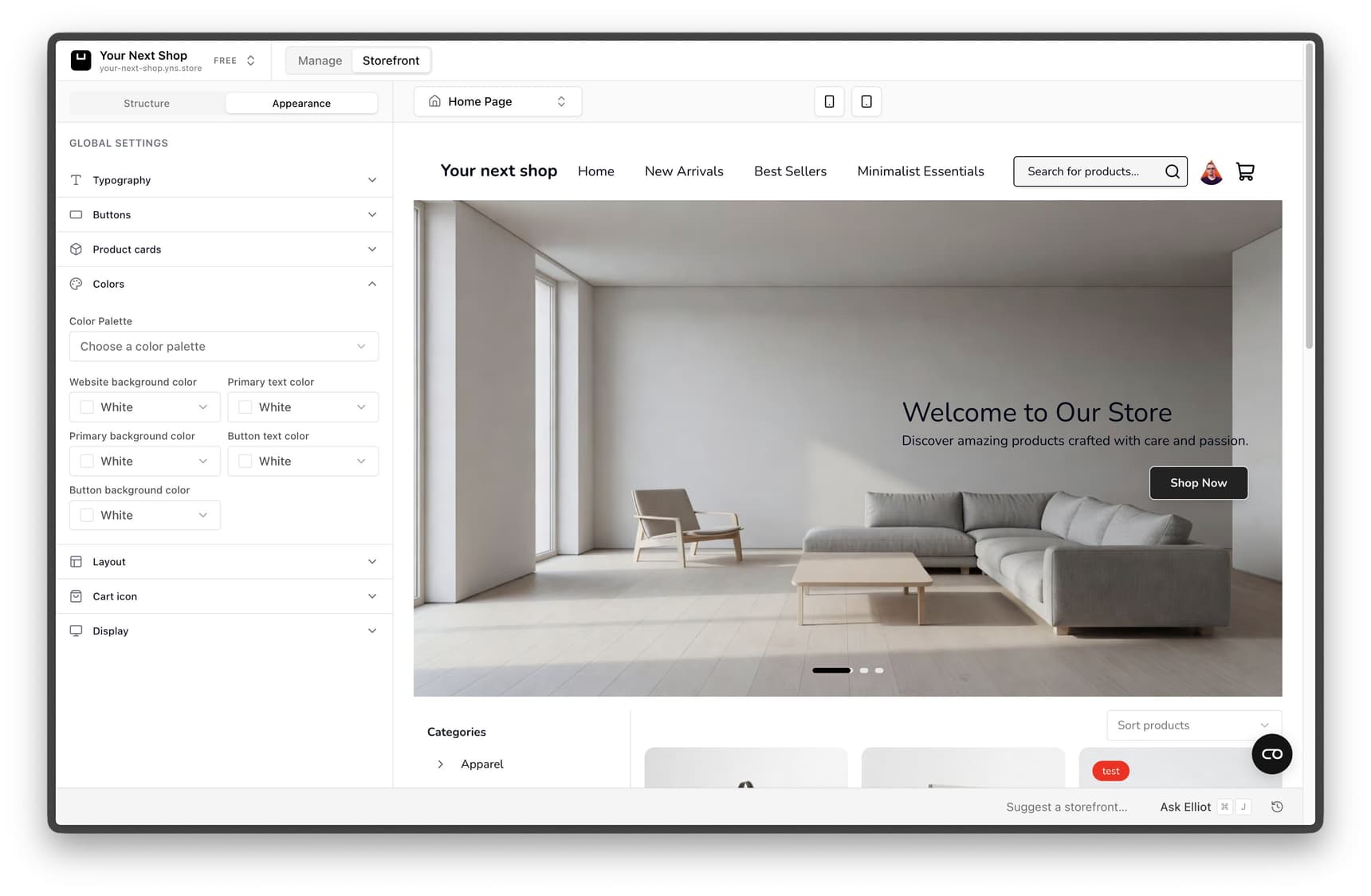
What a theme changes
A theme sets the overall feel of your store all at once – so the pieces look like they belong together rather than a patchwork of choices. It's a great starting point, and you can still refine every detail afterward.
| What it sets | What that means for your store |
|---|---|
| Layout | How sections are arranged on your homepage and product pages – spacing, alignment, and structure |
| Colors | The palette used for backgrounds, text, buttons, and accents |
| Fonts | The typefaces used for your headings and body text |
| Overall feel | Whether your store reads as bold and modern, soft and minimal, classic and trustworthy, and so on |
Note: A theme changes how your store looks, not what it sells. Your products, prices, orders, and settings all stay exactly as they are when you switch themes.
Before you start
A theme is easier to choose well when you know the mood you're after. It helps to have a sense of:
- Your style – clean and minimal, warm and friendly, bold and colorful, or something else.
- Your brand colors, if you already have them – you can match a theme to them or adjust later.
- A reference or two – stores or brands whose look you admire can guide your choice.
Step 1: Browse the themes
Go to the design area of your dashboard and open the themes. Browse the available options to find a look that suits your brand. Look at the overall feel first – you can always change individual colors and fonts later, so don't get stuck on small details at this stage.
Step 2: Preview before you commit
Preview a theme to see how your store looks with it before you decide. This lets you compare a few options with your own products and content already in place, which is far more useful than judging a sample image.
Note: Previewing doesn't change your live store. Customers won't see anything new until you apply a theme and publish.
Step 3: Apply the theme
When you find one you like, apply it. Your store instantly takes on the new look. If you change your mind, you can apply a different theme just as easily – nothing is permanent.
Step 4: Refine it your way
A theme is a starting point, not a limit. After applying one, you can fine-tune anything with the AI design builder – just describe the changes you want and watch them happen.
Tip: Do it with AI – try asking the AI design builder things like "make the buttons darker", "use a rounder font for headings", or "give the homepage more breathing room". It edits your applied theme without you starting over.
Theme vs. building from scratch
You don't have to choose a theme at all – but it usually saves time. Here's when each approach makes sense:
- Start from a theme when you want a polished look quickly, or you're not sure where to begin. It does the heavy lifting, and you refine from a strong base.
- Build it up yourself with the AI design builder when you have a very specific vision and would rather describe it piece by piece.
Most merchants start from a theme and then customize – it's the fastest route to a store that feels like yours.
FAQ
Will applying a theme delete my products or content?
No. A theme only changes the look – your products, pages, orders, and settings are untouched. You can switch themes as often as you like without losing anything.
Can I change colors and fonts after applying a theme?
Yes. A theme is just a starting point. You can adjust colors, fonts, and layout afterward in your logo and branding settings or by describing changes with the AI design builder.
Do customers see a theme change right away?
Only after you publish. You can apply and preview a theme privately, then publish when you're happy – see Publish and go live.
What if I don't like the new theme?
Just apply a different one, or use the AI design builder to adjust the parts you want to change. Nothing about a theme is locked in.
What's next
- Make it yours in Set your logo and branding.
- Tweak any detail with the AI design builder.
- Arrange your homepage sections in Add pages and content.