Create product bundles
Sell several products together at a bundle price to raise your average order.
A bundle groups several products into a single offer at one price – like a "Starter Kit" or a "Gift Set". Bundles are a great way to increase your average order and make shopping easier for customers.
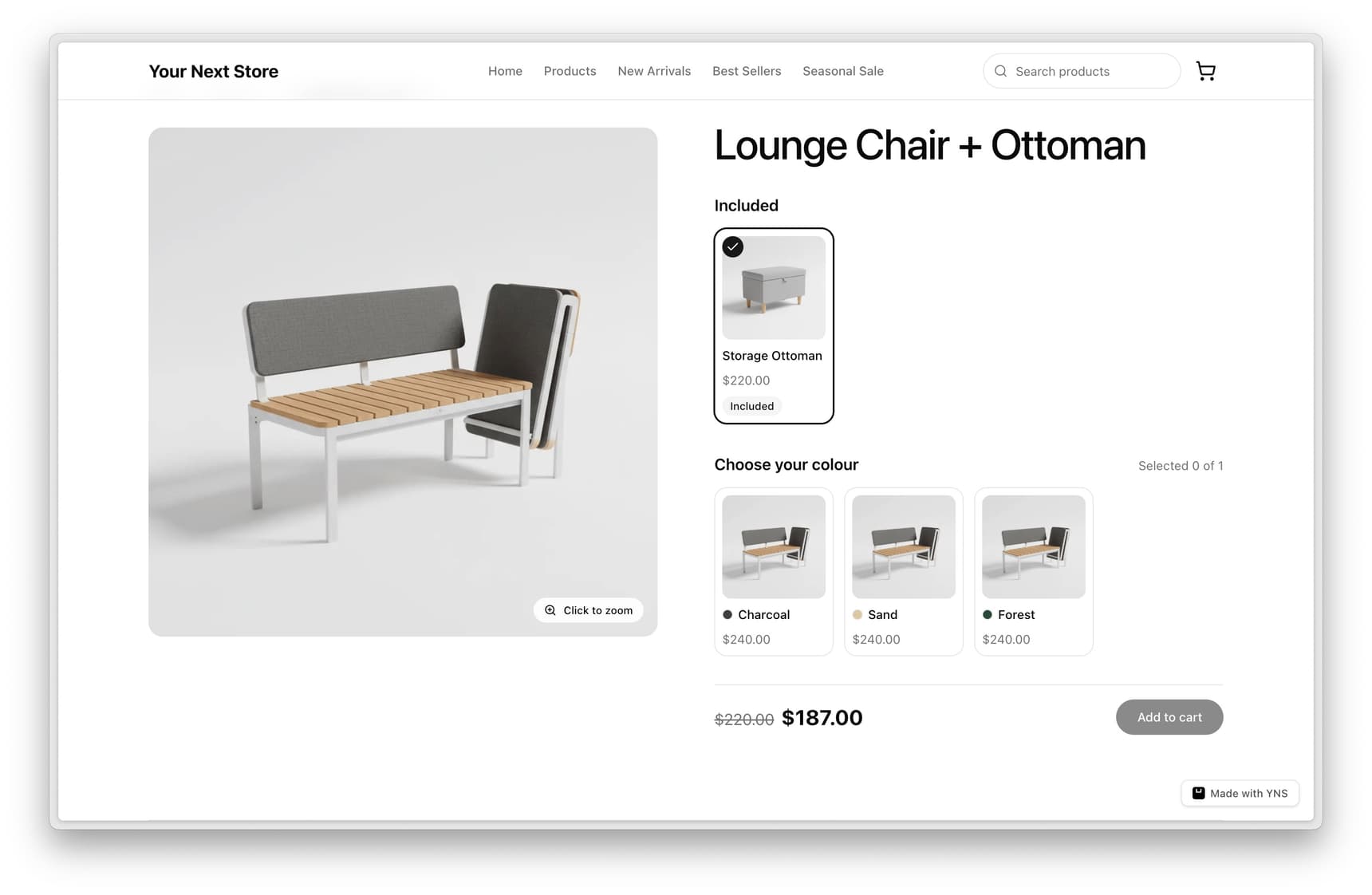
Why sell bundles
Bundles work well when products go naturally together:
- Save customers time – they buy everything in one click.
- Increase order value – a bundle often sells more than a single item.
- Move related items – pair a popular product with one you'd like to promote.
- Tell a story – a "Starter Kit" or "Gift Set" feels like a thoughtful, complete purchase.
Before you start
A bundle is built from products you already have, so a little setup first makes it quick:
- Add the individual products you want to include – see Add a product.
- Note the variants you'll use, like a specific size or color.
- Decide your saving – how much cheaper the bundle is than buying each item apart.
Step 1: Choose what goes in the bundle
In your dashboard, open Manage and go to your bundles area. Create a new bundle and add the products you want to include. You can include specific variants too – for example, the medium size of a shirt with a particular mug.
Pick products that genuinely belong together. A bundle that makes sense to the shopper – a candle with its matching holder, say – sells far better than a random pairing.
Step 2: Set the bundle price
Give the bundle its own price. Most stores set it a little lower than buying each item separately, so the bundle feels like a deal. You can set the saving as a percentage off or as an exact price.
| Pricing approach | When to use it |
|---|---|
| Percentage discount | You want a consistent saving, like 10% off the combined price |
| Exact bundle price | You want a clean, memorable number like "$50 for the set" |
Tip: Make the saving obvious. If the items would cost $60 apart, a $50 bundle gives shoppers a clear reason to choose it.
Let shoppers pick their own combination
A bundle doesn't have to be a fixed set. Add choice groups and the shopper builds their own – "pick any 3 soaps", "choose 2 flavours plus a mug".
For each group you set:
| Setting | What it controls |
|---|---|
| Group name | What the shopper sees above the choices, like "Soap" or "Pick your scent" |
| How many to pick | The number of items chosen from that group |
| Allow duplicates | Whether the same option can be picked more than once |
Add the products or variants that belong in each group. All the options inside one choice group need the same price, so the bundle price stays predictable however the shopper builds it.
Tip: Pick-and-match bundles work beautifully for anything people have a favourite of – scents, flavours, colours. "Choose any 3" converts better than a fixed trio nobody quite wanted.
Step 3: Publish
When your bundle looks right, publish it so it appears in your store, just like any other product. Add a clear name and a photo of the items together so shoppers can see exactly what they're getting.
Every item you include needs to be published too. If the bundle itself is still a draft, or an item that's always included is unpublished, shoppers can't add it to their cart – it's held back the same way an out-of-stock item would be. An optional item (inside a choice group) that's unpublished simply drops out of the choices shoppers see, so the rest of the bundle still works.
Common mistakes to avoid
- Unrelated products. A bundle only works if the items make sense together – pick pairings the shopper would actually want.
- No real saving. If the bundle costs the same as buying separately, there's little reason to choose it.
- Empty stock on an item. A bundle needs its parts available, so keep an eye on inventory.
- A draft item you meant to include. An always-included item left as a draft blocks the whole bundle from selling – publish it, or remove it from the bundle.
- A vague name. "Bundle 1" tells shoppers nothing – "Cozy Night-In Gift Set" sells.
FAQ
Can a bundle include specific variants?
Yes. You can add a particular variant – like the medium size of a shirt in a specific color – so the bundle contains exactly the options you intend.
How should I price a bundle?
Most stores price a bundle a little below the cost of buying each item separately, so it feels like a deal. You can set the discount as a percentage or as an exact bundle price.
Does a bundle work like a normal product?
Yes. Once published, a bundle appears in your store and can be bought just like any other product, with its own name, price, and photo.
What happens if one item in the bundle runs low?
A bundle relies on its individual products being in stock, so keep your inventory accurate to avoid selling a bundle you can't fully fulfill.
What happens if an item in the bundle is still a draft?
If it's always included, the whole bundle can't be bought until you publish that item. If it's one of several choices in a group, shoppers just don't see it as an option – the rest of the group still works.
What's next
- Add the products you'll bundle – see Add a product.
- Include specific options with product variants.
- Keep bundle items in stock with Manage inventory.
- Boost bundles further with coupons and discounts.