Manage inventory
Track stock levels, spot low stock early, and avoid overselling.
Keeping track of stock means you always know how much you have to sell – and you never accidentally sell something that's out of stock. YNS tracks inventory for you so you can focus on running your store.
How stock tracking works
You set a stock number for each product, and YNS counts it down automatically as orders come in. If a product has variants, stock is tracked per variant – so you'll know you have three Smalls left even if Larges are sold out.
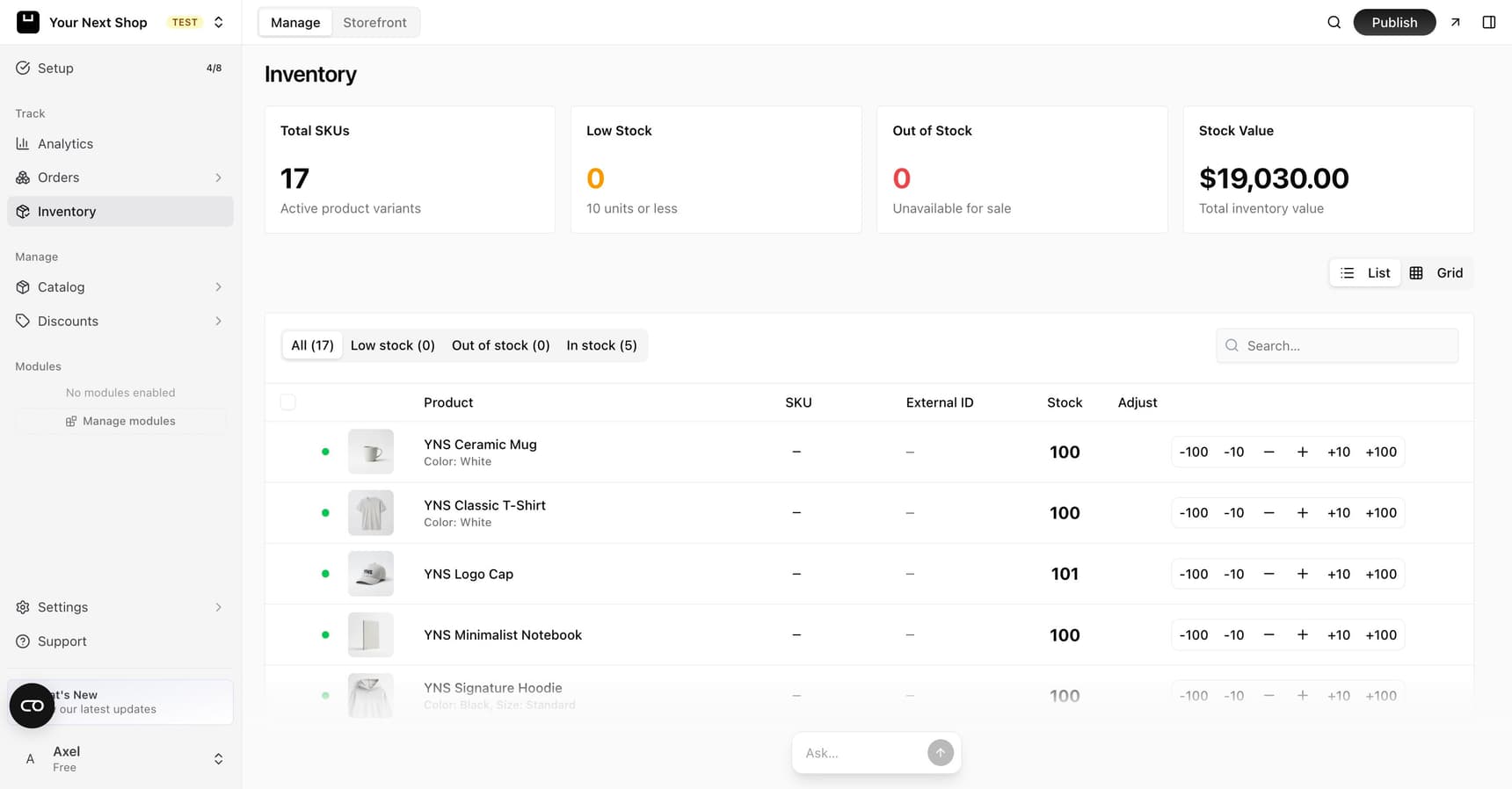
The inventory page gives you a quick read on your whole catalog at a glance:
| What you see | What it tells you |
|---|---|
| Total SKUs | How many distinct products and variants you're tracking |
| Low stock | Items running low that may need reordering soon |
| Out of stock | Items shoppers can no longer buy until you restock |
| Total stock value | The combined worth of what you have on hand |
Step 1: Set your stock levels
When you add or edit a product, enter how many you have. Update this whenever new stock arrives. If a product has variants, set a stock number for each one so every option is tracked separately.
Leave the stock field empty instead, and YNS treats that product (or variant) as untracked – it shows ∞ stock, sells without any cap, and never shows up as low or out of stock, on the inventory page or anywhere else. That's meant for made-to-order items or anything you don't want to run out. Enter 0 only when you mean it: that's what actually marks an item sold out and stops shoppers from buying it.
Step 2: Watch for low stock
Your products list and inventory page show how much you have left, so it's easy to spot when something is running low and needs reordering before it sells out. Quick-adjust buttons let you bump a count up or down as stock comes and goes.
Note: When a product reaches zero, shoppers can no longer buy it.
Tip: Do it with AI. Want a fast read on what's running low? Ask the AI Assistant something like "which products are low on stock?" or "set the stock for the blue mug to 40" and it checks or updates inventory for you.
Holding stock during checkout
If you turn on the Abandoned Carts feature, YNS can also briefly hold an item for a shopper while they're checking out. With this safeguard enabled, it's much harder for two people to both buy the very last item at the same time – and if a checkout isn't completed, the hold is released and the item becomes available again.
This stock-hold safeguard is off for new stores – it's part of the Abandoned Carts module, so you'll need to turn that on to use it.
Tip: Keep your stock numbers accurate. Reliable inventory builds trust – customers hate ordering something only to find it's unavailable.
Need expiry dates or a receiving process?
The tracking above covers most stores: one number per product or variant, going up and down as you edit it. If some of your products expire, come in named batches, or you want a record of every delivery you receive, turn on Warehouse — see Track lots, expiry dates, and receiving with Warehouse. It's an optional, one-way upgrade, so only turn it on once you're ready to receive stock through it.
Common mistakes to avoid
- Letting counts drift. Update stock when new shipments arrive so your numbers match the shelf.
- Forgetting variant stock. Each variant tracks separately – a product can look in stock while a popular size is sold out.
- Ignoring low-stock warnings. Reorder before you hit zero to avoid lost sales.
- Restocking the wrong item. Double-check you're adjusting the right product or variant before saving.
- Confusing blank with zero. An empty stock field means untracked (sells without limit), not sold out – enter 0 if you actually want the item to stop selling.
FAQ
What happens when a product hits zero stock?
Shoppers can no longer buy it, which prevents overselling. Once you add stock again, it becomes available immediately.
How is stock tracked for products with variants?
Each variant has its own stock count, so you always know exactly how many of each size or color you have – even when other options are sold out.
Can two customers buy the last item at the same time?
By default, stock counts down as orders come in, so once an item hits zero it can't be bought. If you turn on the Abandoned Carts feature, YNS can also hold an item briefly while a shopper checks out, which makes it much harder for two people to buy the very last one at once. That stock-hold safeguard is off for new stores until you enable Abandoned Carts. If they don't finish checkout, the hold is released and the item returns to available.
How do I update stock after a new shipment?
Edit the product (or variant) and set the new count, or use the quick-adjust buttons on the inventory page. You can also ask the AI Assistant to update a count for you.
What does "∞ stock" mean?
It means that product or variant is untracked – its stock field is empty, so YNS lets it sell without a cap and never flags it as low or out of stock. Enter a real number, including 0, to start tracking it.
What's next
- Track stock per option with product variants.
- Keep bundle items available – see bundles.
- Restock and edit products from Add a product.