Organize with categories & collections
Group products into browsable aisles and curated collections so shoppers find them easily.
As your store grows, shoppers need an easy way to find what they want. Categories and collections both group products together – but they do slightly different jobs, and using both well makes your store feel effortless to browse.
Categories vs. collections
Think of it this way:
- Categories are the structured way to browse your store, like aisles in a shop. A clothing store might have "Tops", "Bottoms", and "Shoes". Each product usually belongs to a category.
- Collections are curated groupings you create for a reason – like "Summer Sale", "New Arrivals", or "Gifts Under $25". A product can appear in several collections at once.
| Categories | Collections | |
|---|---|---|
| Purpose | Everyday browsing structure | Curated, themed groupings |
| Example | Tops, Bottoms, Shoes | Best Sellers, Holiday Picks |
| How it's filled | You assign products | Manually, or automatically by rules |
| How many per product | Usually one main category | A product can be in many collections |
| Best for | The backbone of your navigation | Marketing, seasons, and themed pages |
A good way to plan: sketch your categories first as the permanent shelves of your store, then layer collections on top for sales, seasons, and special themes.
Before you start
It helps to think about how shoppers picture your products before you build the structure:
- List your main groups – the handful of aisles that cover everything you sell.
- Keep it simple – too many categories is harder to browse than too few.
- Note recurring themes – sales, seasons, and gift ideas make great collections.
Step 1: Create a category
In your dashboard, open Manage, then your categories area. Create a category with a clear name, then assign products to it. Shoppers can then browse that category in your store.
Clear, familiar names work best – "Shoes" beats "Footwear & More". You can also feature categories in your navigation menus so they're one click away.
Step 2: Create a collection
Collections can be filled two ways:
- Manual – you hand-pick the products you want, perfect for a "Staff Favorites" set.
- Automatic (smart) – you set a rule, like "all products under $25", and matching products are added for you.
Tip: Automatic collections keep themselves up to date. As you add new products that match the rule, they appear in the collection without any extra work.
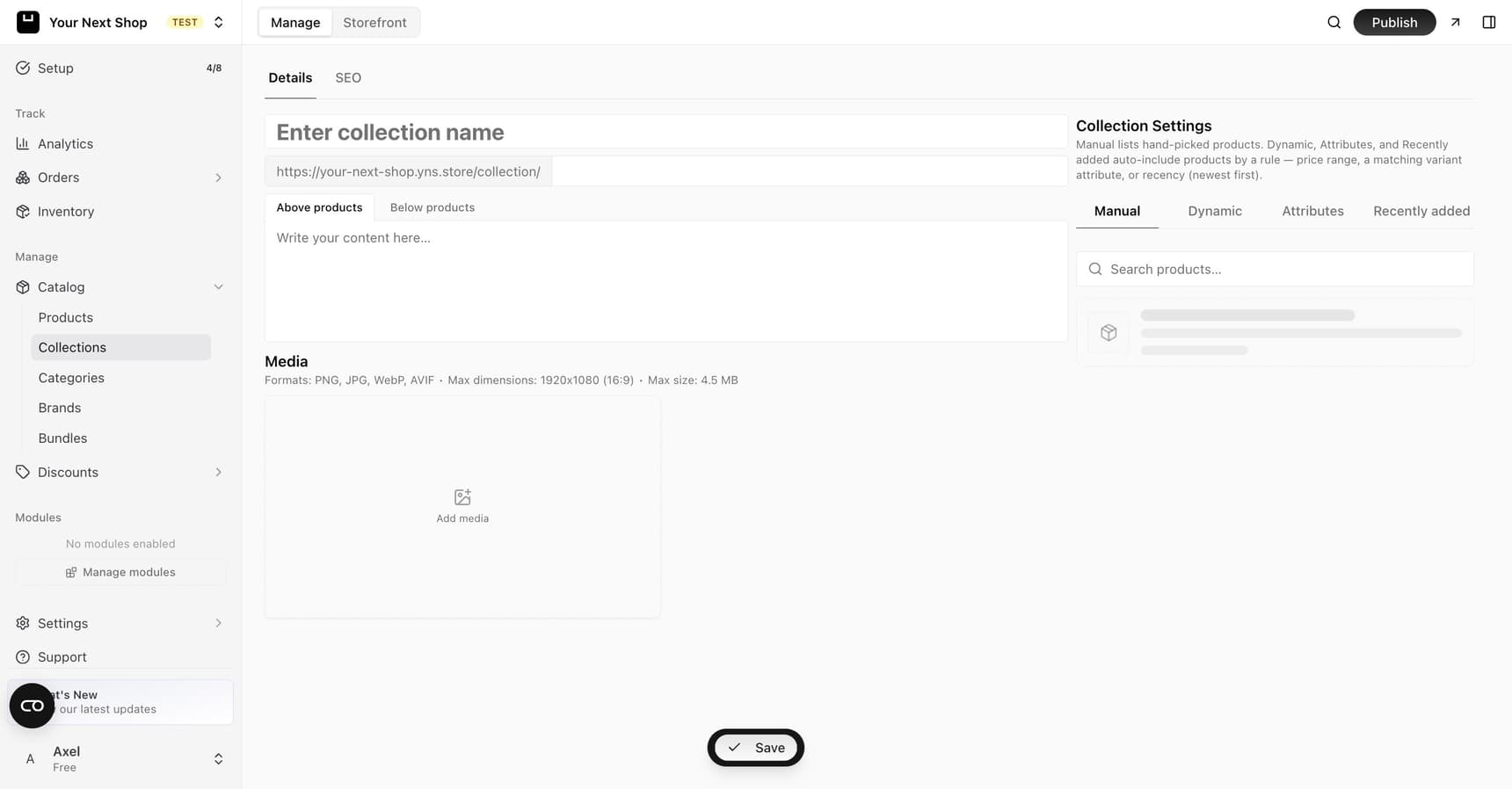
Which collection type to choose
| Collection type | Best for |
|---|---|
| Manual | A handpicked set that won't change often, like "Staff Favorites" |
| Automatic by rule | Groups that should update themselves, like "Under $25" or "On Sale" |
| Recently added | A "New Arrivals" row that always shows your latest products |
Tip: Do it with AI. Need to set this up quickly? Ask the AI Assistant to "create a category called Candles" or "make a collection of products under $25" and it handles the organizing for you.
Common mistakes to avoid
- Too many categories. A long, cluttered menu is harder to use than a short, clear one. Group where you can.
- Empty categories or collections. A group with no products looks broken – fill it before featuring it.
- Overlapping names. "Sale" and "Discounts" as two separate collections confuses shoppers. Pick one.
- Forgetting to add new products. Manual collections don't update themselves – automatic ones do.
FAQ
Can a product be in more than one category?
A product usually has one main category for browsing, but it can appear in many collections at once – so use collections when you want the same product to show up in several themed places.
What's the difference between a manual and an automatic collection?
A manual collection is one you fill by hand, product by product. An automatic collection fills itself based on a rule you set, like "everything under $25", and keeps itself up to date as your catalog changes.
Will automatic collections update on their own?
Yes. Any new product that matches the rule is added for you, with no extra work – which makes them great for ongoing groups like sales or price-based collections.
Do categories show up in my store's menu?
They can. Categories are the natural backbone of your store's navigation – see navigation menus to feature them.
Can I add just one variant of a product to a collection?
Not directly – collections hold whole products, so adding a product brings all of its variants along. This is how every major platform works, including Shopify and WooCommerce.
If one variant deserves its own spot – say a single seasonal scent from a fragrance line – the fix is to split that variant into its own product, then add the new product to the collection. The AI Assistant can handle the split for you: it copies the name, photo, price, and stock into a standalone product and puts it in the right collection. Keep in mind the new product is separate from then on – it has its own page and tracks its own stock.
What's next
- Add more products to organize – see Add a product.
- Put your categories in front of shoppers with navigation menus.
- Let shoppers browse by maker with brands.