Get paid for wholesale orders
Buyers pay a reserved order by card or bank transfer, or you mark it paid yourself. You can also type up orders for them and change them before they're paid.
A wholesale order is reserved first, not charged. That gives you and the buyer time to confirm everything before money changes hands.
How the buyer pays
After placing an order, or by clicking Pay in Order history or the Awaiting payment strip above the catalog, the buyer sees a payment page: "This order has been prepared for you. Review the items and choose how to pay." It also shows Reserved until and the date the reservation ends. Account number and transfer title come with a Copy button, so paying by bank transfer doesn't mean retyping them by hand.
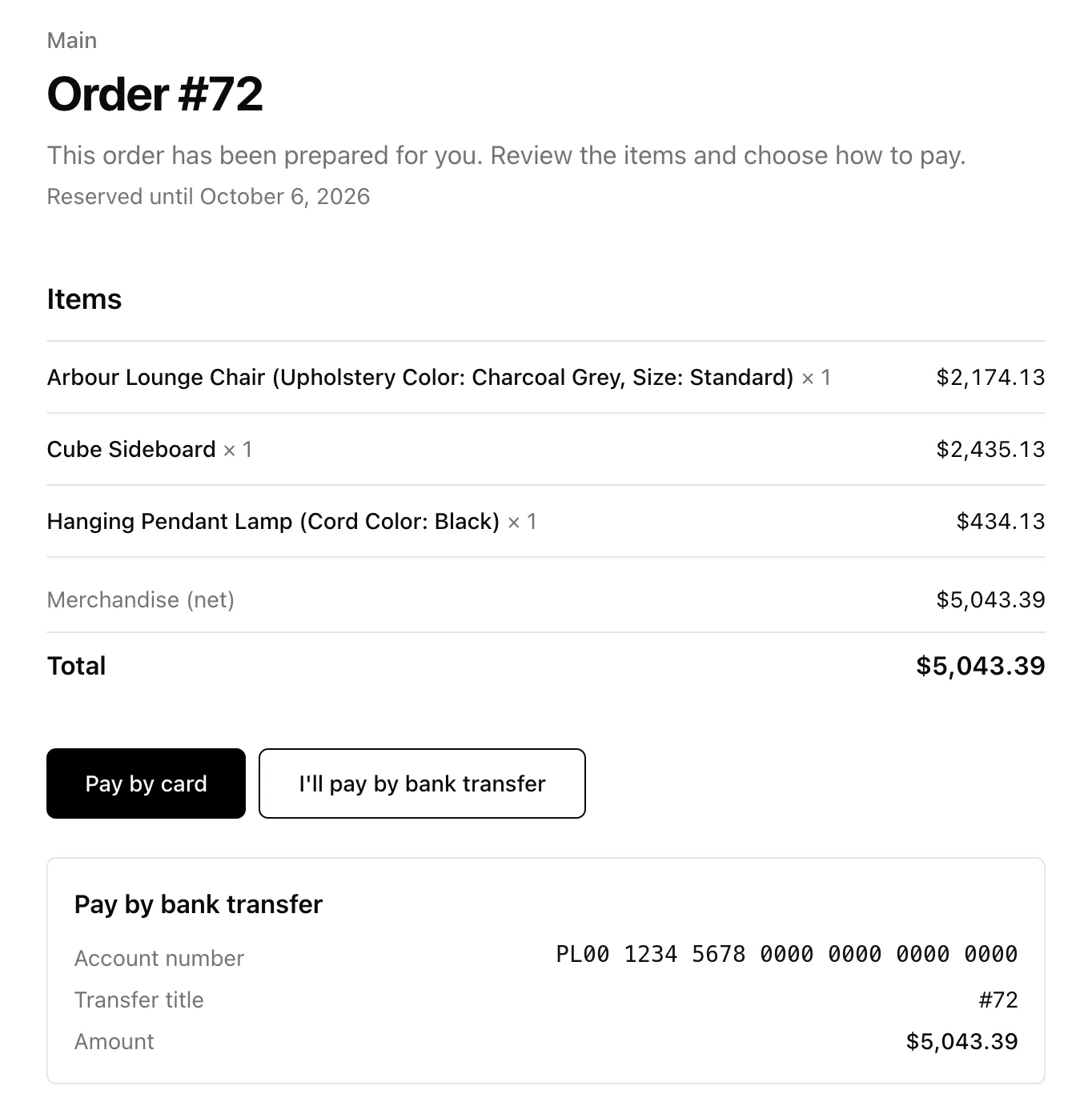
| Option | Shows when | What you need |
|---|---|---|
| Pay by card | You accept card payments | Stripe connected |
| Pay by bank transfer | You've added bank details | Your account under Settings → Payments → Bank transfer – the same details retail checkout uses, see Accept bank transfer, e-Transfer, and cash on delivery |
If neither is set up, the page says "Contact the seller to arrange payment." The order is still reserved, and you settle up however you normally would.
Mark an order paid yourself
For cash, an invoice paid outside YNS, or an account the buyer settles monthly, open the order and click Mark as paid.
Note: There are no built-in payment terms such as "net 30" yet. To give a client credit, leave the order reserved and mark it paid when the money arrives. If you need longer than 14 days, raise the reservation length in Settings → Payments.
Type an order for a client
When an order comes in by phone, text or email:
- Open the client under Wholesale → Clients and click Create order. You can also go to Orders → Create order and pick the client.
- Every price fills in at their rate automatically. A banner confirms it: "Wholesale price list applied: Restaurants (20% off retail)".
- Add a shipping line if you need one, then save and send the payment link.
The buyer sees this order in their panel under Order history too. For more about building orders by hand, see Create draft orders and invoices.
Change a reserved order
Until the buyer pays, you can still change what they ordered:
- Open the order and click Edit order.
- Add or remove products, change quantities, pick a delivery method or fix the address. Products you add come in at the client's price list, not the retail price.
- Save. Stock moves by the difference, and the buyer's payment link now asks for the new total.
Since nothing has been charged, there's nothing to collect or refund. If you add more of a product than you have in stock, saving is refused and names the product, so the buyer is never asked to pay for goods you can't send. If the buyer has already said they paid by bank transfer, the edit screen reminds you to tell them the new amount.
Note: Use Mark as paid only once the money has arrived – it records the payment and emails the buyer a confirmation.
Spot wholesale orders
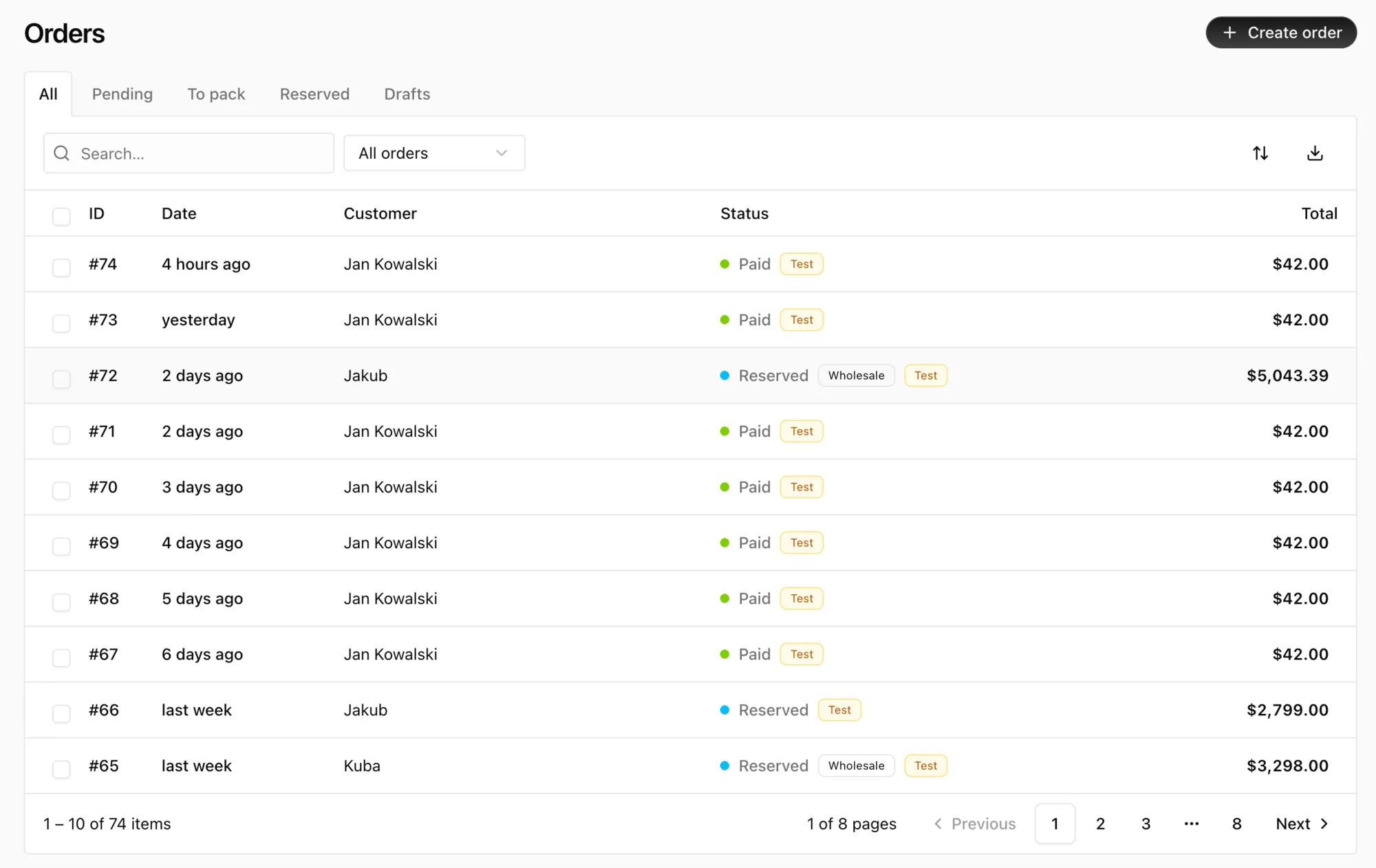
Orders placed through a client's deal, by them or by you, have a Wholesale badge in the orders list and in the order details. Everything else works like a retail order: fulfillment, refunds, invoices. When you edit one, paid or not, products you add come in at the client's price. See View and manage orders.
FAQ
What happens when a reservation expires?
The order is cancelled and its stock goes back on sale. Create a new order if the buyer still wants the items.
Are invoices generated for wholesale orders?
Yes. Once the order is paid, invoices work just like they do for retail. Orders placed from the panel carry the business details the buyer entered on their profile as the billing address.
What's next
- Review your whole setup in Sell wholesale to business buyers.
- Make sure buyers can pay by card: Connect Stripe to get paid.