Connect Stripe to get paid
Link your Stripe account so you can accept real payments and receive payouts.
To take real payments from customers, your store needs to be connected to Stripe. It's the one step that turns your store from a preview into a shop that can actually take money and pay you out.
What Stripe is
Stripe is the trusted service that handles card payments for your store. When a customer pays, Stripe securely processes their card and deposits the money into your account. You never handle sensitive card details yourself – Stripe takes care of all of that safely, which keeps both you and your customers protected.
Think of YNS as your shop and Stripe as the cash register and bank connection behind it. YNS shows the products and runs the checkout; Stripe moves the money.
Payment methods your customers can use
Connecting Stripe gives your checkout more than card payments:
- Cards – all major debit and credit cards.
- Wallets – Apple Pay, Google Pay, Link, Amazon Pay and Cash App Pay, for one-tap checkout on supported devices.
- Buy now, pay later – Klarna, Afterpay and similar, where Stripe offers them.
- Local payment methods – depending on where your customers shop, checkout can offer the methods they already use, such as BLIK or Przelewy24.
- Crypto – stablecoin payments, where your Stripe account is eligible.
Your checkout offers exactly the methods you switch on under Payment methods in your Stripe Dashboard. There's nothing extra to install and nothing to configure in YNS – turn a method on in Stripe and it shows up at checkout for the customers Stripe considers eligible for it.
Note: Stripe decides which of your enabled methods to show each customer, based on their country, device and your store's currency and order total. A method you've enabled won't appear for a shopper it doesn't apply to.
Before you start
Connecting goes faster if you have a few things ready:
- Your business details – your business name and basic information.
- Your bank account details – so Stripe knows where to send your payouts.
- An email address – to create or sign in to your Stripe account.
You don't need any of this to build your store, only to start taking real payments.
Connect or create your account
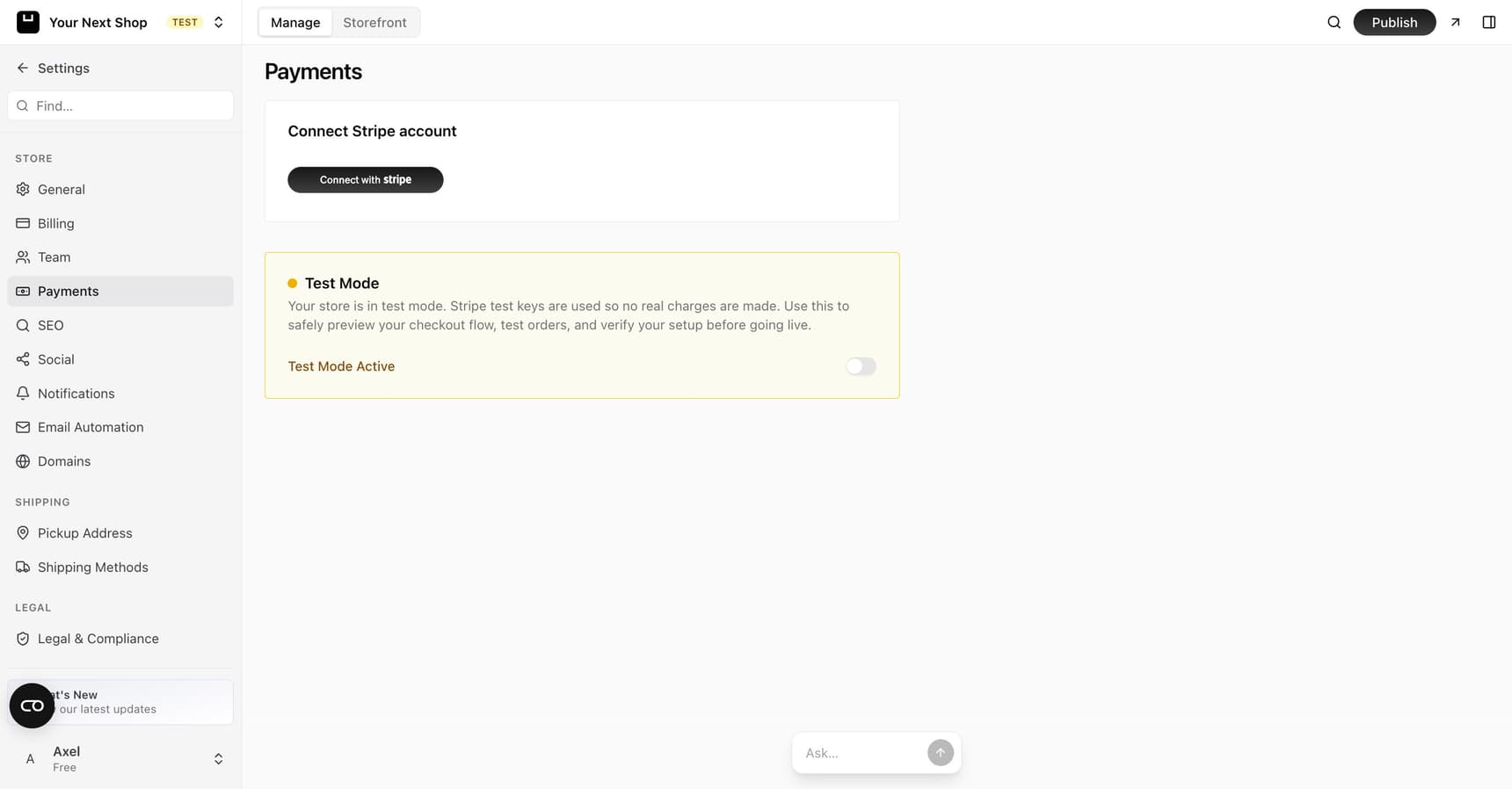
You connect Stripe from your store's Settings:
- Open Settings and find the payments or Stripe section.
- Choose to connect Stripe.
- If you already have a Stripe account, sign in to link it. If you don't, you can create one right there in a few minutes.
- Follow Stripe's prompts to confirm your business and bank details so payouts can reach you.
Once connected, your store is ready to accept payments.
Note: You can't accept real payments until Stripe is connected. Customers won't be able to check out and pay until this step is complete.
Test mode vs live payments
Before you go live, you can use test mode to make sure checkout works end to end without any real money changing hands – see Test mode and going live. This lets you place a practice order and see the whole flow as a customer would. When you're confident everything works, connecting and switching to live payments is what lets real customers pay.
Tip: Run one test order before you go live. It's the quickest way to catch anything that needs fixing before real customers arrive.
How payouts work
Once you're taking payments, Stripe collects the money from your sales and pays it out to the bank account you connected. Stripe handles the timing of those payouts and any processing fees – your YNS dashboard shows your orders and totals, while the movement of money lives with Stripe. If you ever need to change your bank details or check when a payout is arriving, you do that in your Stripe account.
Change or disconnect your Stripe account
Connected the wrong Stripe account, or need to switch to a different one? Go to Settings → Payments:
- Change account – starts a new connection so you can link a different Stripe account. Your store stays on the current one until the new connection finishes.
- Disconnect – detaches the current Stripe account immediately. Your store stops accepting payments until you connect an account again, but your existing orders, payouts and customers stay on the Stripe account you disconnected – nothing is deleted.
Note: Disconnecting doesn't cancel anything on Stripe's side. If you want to fully close that Stripe account, do that from your Stripe Dashboard.
Why it's required before going live
Connecting Stripe is part of getting ready to sell. It's a key item on your setup checklist, and it needs to be done before you publish and go live.
FAQ
Do I need a Stripe account before I start?
No. If you already have one you can link it, but if you don't, you can create a Stripe account right from your store's settings in a few minutes as part of connecting.
Is it safe to enter card details on my store?
Yes. Customers' card details go straight to Stripe, which is built to handle payments securely. You never see or store sensitive card information yourself.
When do I get my money?
Stripe collects payments from your sales and pays them out to your connected bank account. The timing of payouts and any fees are managed by Stripe, which you can review in your Stripe account.
Can I test checkout before taking real payments?
Yes. Test mode lets you run a practice order through the whole checkout without charging a real card, so you can confirm everything works before you go live.
I connected the wrong Stripe account. Can I fix it?
Yes. Go to Settings → Payments and use Change account to connect a different one, or Disconnect to detach the current account first. Your past orders and payouts stay with the Stripe account that processed them either way.
What's next
- Work through your full setup checklist.
- Decide how you'll charge tax in Set up taxes.
- Set the currency you sell in with Set your currency.
- When you're ready, publish and go live.