Set up taxes
Charge the right tax automatically with Stripe Tax or with your own manual rates, and choose how tax shows in prices.
Most stores need to charge tax on their sales, and YNS gives you two ways to handle it. You can let tax be calculated automatically, or you can set your own rates by region – whichever fits your business best.
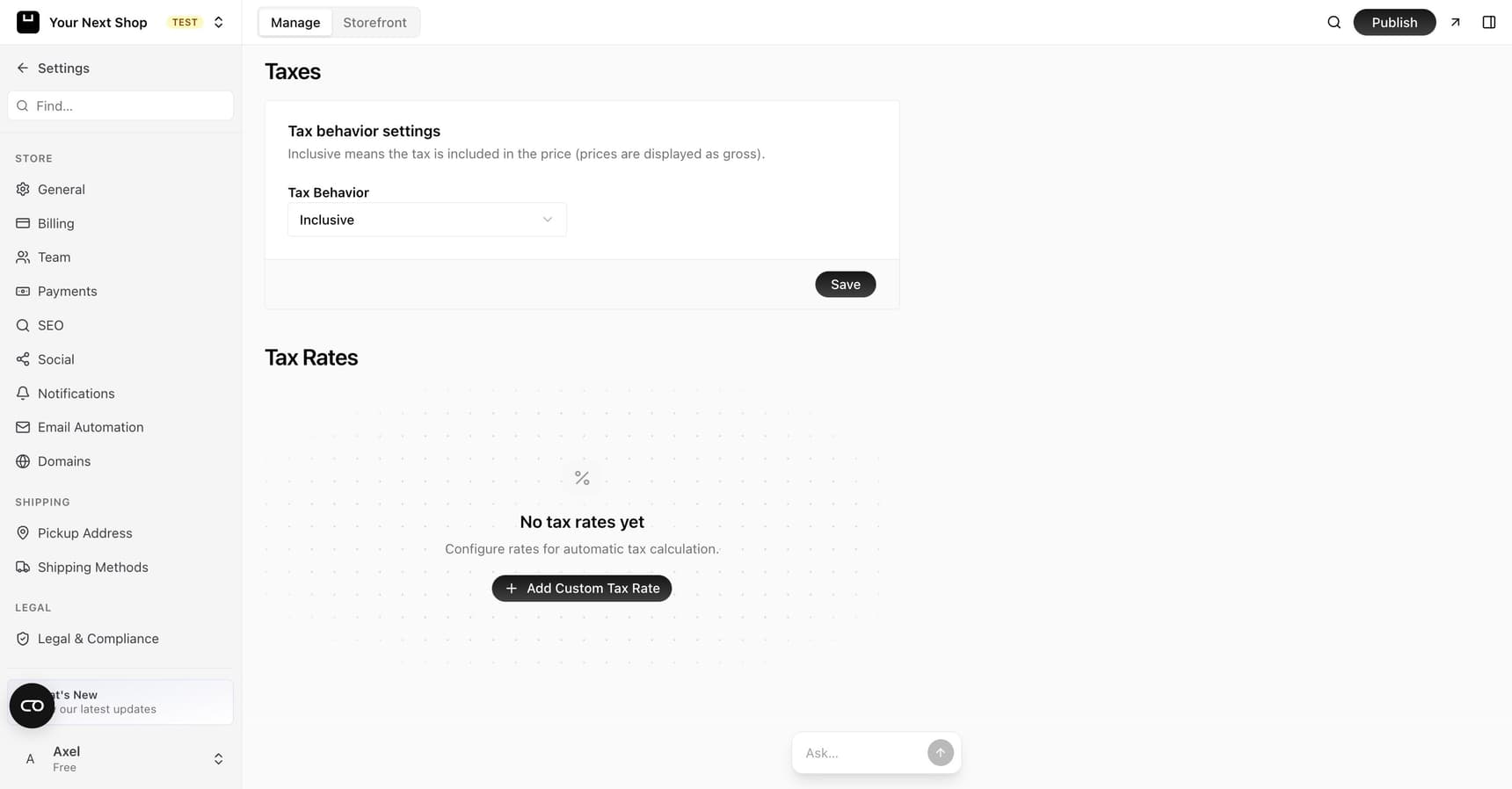
Two ways to charge tax
Automatic tax
With automatic tax, the correct rate is worked out for you based on where your customer is. This uses Stripe Tax, which keeps up with tax rules across regions so you don't have to. It's the easiest option, especially if you sell to customers in different places, because you don't have to track changing rates yourself.
Manual tax rates
If you'd rather be in control, you can create your own tax rates and apply them by country or region. This is handy if your situation is straightforward – for example, a single rate for your home country – or if you simply prefer to set the numbers yourself.
Tip: If you're unsure which approach fits your business, automatic tax is the simplest place to start.
Which to choose
| Automatic tax | Manual tax rates | |
|---|---|---|
| Best for | Selling to several regions or countries | A simple, single-region setup |
| Who sets the rate | Stripe Tax, based on the customer's location | You, by country or region |
| Keeping rates current | Handled for you | You update them as rules change |
| Setup effort | Minimal | A little more, but full control |
Automatic tax saves you from chasing rate changes; manual rates give you exact control. Many stores start with automatic tax and only switch to manual if they have a specific reason.
Tax-inclusive vs tax-exclusive prices
You can also decide how tax appears in your prices:
- Tax-inclusive – the price shown already includes tax. The customer sees one all-in number, with no surprise added at checkout.
- Tax-exclusive – tax is added on top at checkout, so it shows as a separate line.
Which one you choose often depends on what's normal in your country, so pick the style your customers expect. In many places, shoppers are used to seeing tax-inclusive prices, while in others tax is added at the end – matching the local norm keeps your prices feeling fair and familiar.
Note: Tax-inclusive and tax-exclusive change how prices are displayed and broken down, not whether you charge tax. Decide this before you publish, so your listed prices stay consistent.
Before you start with automatic tax
Automatic tax relies on Stripe, so you'll need to connect Stripe first. Once Stripe is connected, automatic tax can use the customer's location to apply the right rate at checkout.
A note on responsibility
Tax rules vary, and you're responsible for charging the right amounts for your business. Automatic tax is a big help, but it doesn't replace knowing your own obligations – where you need to collect tax, and at what rates. If you're not sure what applies to you, it's worth a quick chat with an accountant before you go live.
FAQ
Should I use automatic or manual tax?
If you sell to customers in different regions, automatic tax is usually easier because it keeps up with changing rates for you. If you only charge one straightforward rate, manual rates give you simple, direct control.
What's the difference between tax-inclusive and tax-exclusive prices?
Tax-inclusive means the price already has tax baked in, so the customer sees one final number. Tax-exclusive adds tax as a separate line at checkout. Choose whichever is normal where your customers shop.
Do I need Stripe for automatic tax?
Yes. Automatic tax uses Stripe Tax, so you'll need to connect Stripe before it can calculate rates based on your customer's location.
Is YNS responsible for getting my taxes right?
No. The tools help you charge tax correctly, but you're responsible for knowing what applies to your business. If you're unsure, check with an accountant.
What's next
- Automatic tax relies on Stripe, so first connect Stripe to get paid.
- Set the currency your prices are shown in with Set your currency.
- Publish clear terms for shoppers in Legal pages.