Set your currency
Choose your store's base currency, and optionally enable additional currencies so customers can shop and pay in their own.
Every store has a base currency – the default currency your prices are shown in. You can also optionally enable additional currencies, so customers can shop and pay in the currency they're used to. Choosing your base currency well keeps your prices clear, and adding extra currencies makes your store feel local to more shoppers.
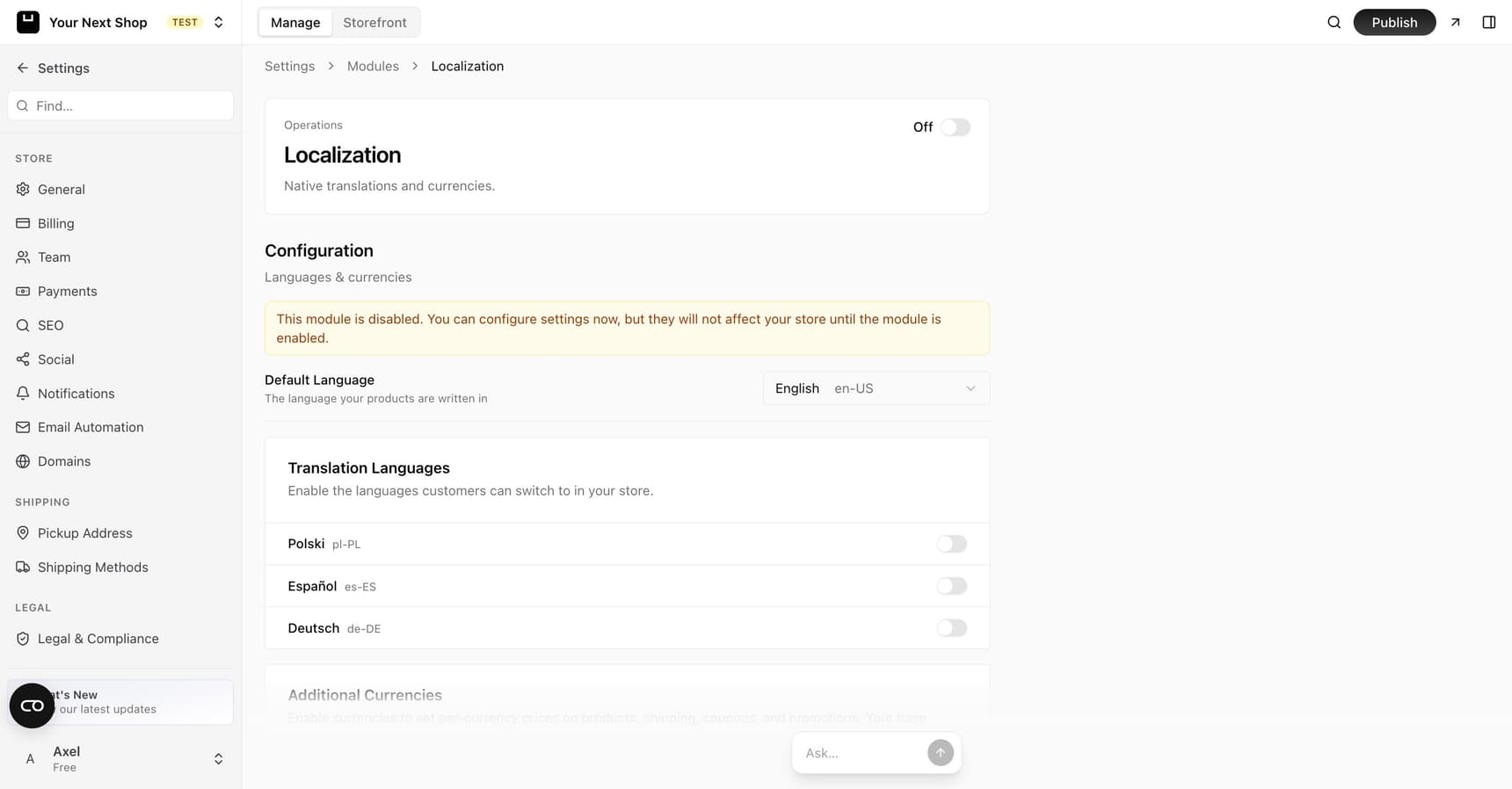
Choosing your base currency
You pick your store's base currency when you first create your store. If you need to change it later, you can do so in your store's Settings.
Your base currency is the default used everywhere prices appear – on product pages, in the cart, and at checkout – unless a customer is shopping in one of your additional currencies. You enter your product prices in your base currency, and that's the price customers pay in by default.
Tip: Choose the base currency most of your customers will pay in. If you sell mainly to one country, your local currency is usually the simplest choice.
Adding additional currencies
If you want to sell to customers in more than one currency, open your localization settings and find the Additional Currencies section. Enable one or more currencies there, and you can set per-currency prices that you control – not just on products, but on shipping, coupons, and promotions too.
This means a customer in another country can shop and pay in their own currency, at prices you've set deliberately, rather than relying on a rough conversion. Your base currency stays the default for everyone else.
Tip: Start with your base currency, then add an extra currency once you see real demand from customers in another country. You only set per-currency prices for the currencies you choose to enable.
How to decide on your base currency
A few simple questions point you to the right choice:
- Where are most of your customers? Sell in the currency they're used to seeing, so prices feel familiar and trustworthy.
- Where's your business based? Selling in your home currency keeps your bookkeeping straightforward.
- What does your bank account use? Matching your currency to your payouts avoids surprises in the amounts you receive.
When in doubt, your own local currency is almost always the safest, simplest pick.
A few things to keep in mind
- Your base currency is the default. Prices are shown in your base currency unless a customer is shopping in an additional currency you've enabled.
- Additional currencies are optional and per-currency. When you enable an extra currency, you set its own prices for products, shipping, coupons, and promotions – they're not an automatic conversion.
- Settle on your base currency early. Changing your base currency later affects how prices display, so it's best to choose the right one from the start rather than switch after you've added lots of products.
- Currency and language are separate. Your currency controls how money is shown; your store's language and any translation languages are set in the same localization area but are a different choice.
Changing your base currency later
You can change your base currency in Settings if your business shifts – for example, if most of your customers move to a different country. Just be aware that the prices you've entered will now be read in the new currency, so review your product prices afterwards to make sure they still make sense. Because this can mean revisiting every price, it's far easier to get the choice right at the start. If you simply want to sell to customers elsewhere without changing your default, enabling an additional currency is usually the better move.
FAQ
Can my store sell in more than one currency at once?
Yes. Enable additional currencies in the Additional Currencies section of your localization settings to sell in more than one, each with its own prices that you control. Your base currency stays the default for everyone else.
When do I choose my currency?
You choose your base currency when you first create your store. You can change it later in Settings, but it's best to settle on the right one early so you don't have to revisit your prices. You can add additional currencies whenever you're ready.
What happens to my prices if I change my base currency?
The numbers you entered stay the same but are now read in the new currency, so the displayed value effectively changes. Review your product prices after switching to make sure they're still correct.
Is currency the same as language?
No. Currency sets how money is displayed, while language sets the words on your store. They live near each other in your localization settings but are separate choices – see Sell in multiple languages.
Can I sell in more than one currency?
Yes. Enable the Localization module and switch on additional currencies, then set a price per currency on your products, shipping, coupons, and promotions – see Sell in multiple currencies.
What's next
- Connect your payment processor in Connect Stripe to get paid.
- Decide how tax is shown and charged in Set up taxes.
- Review the rest of your store options in General settings.
- Add more currencies with Sell in multiple currencies.