How buyers order at their prices
Your client browses your catalog at their negotiated prices, builds an order, and places it. Stock is held right away.
The ordering panel is a simple order form. It's built for buyers who know what they want and reorder often. It isn't a copy of your storefront.
Build an order
At the top of the panel the buyer sees Ordering as followed by their company name. They then:
- Use Search products to find items from your published catalog.
- Enter quantities. Each line shows only their negotiated price – never your retail price alongside it.
- Watch the running totals: Merchandise (net), Tax, and Total.
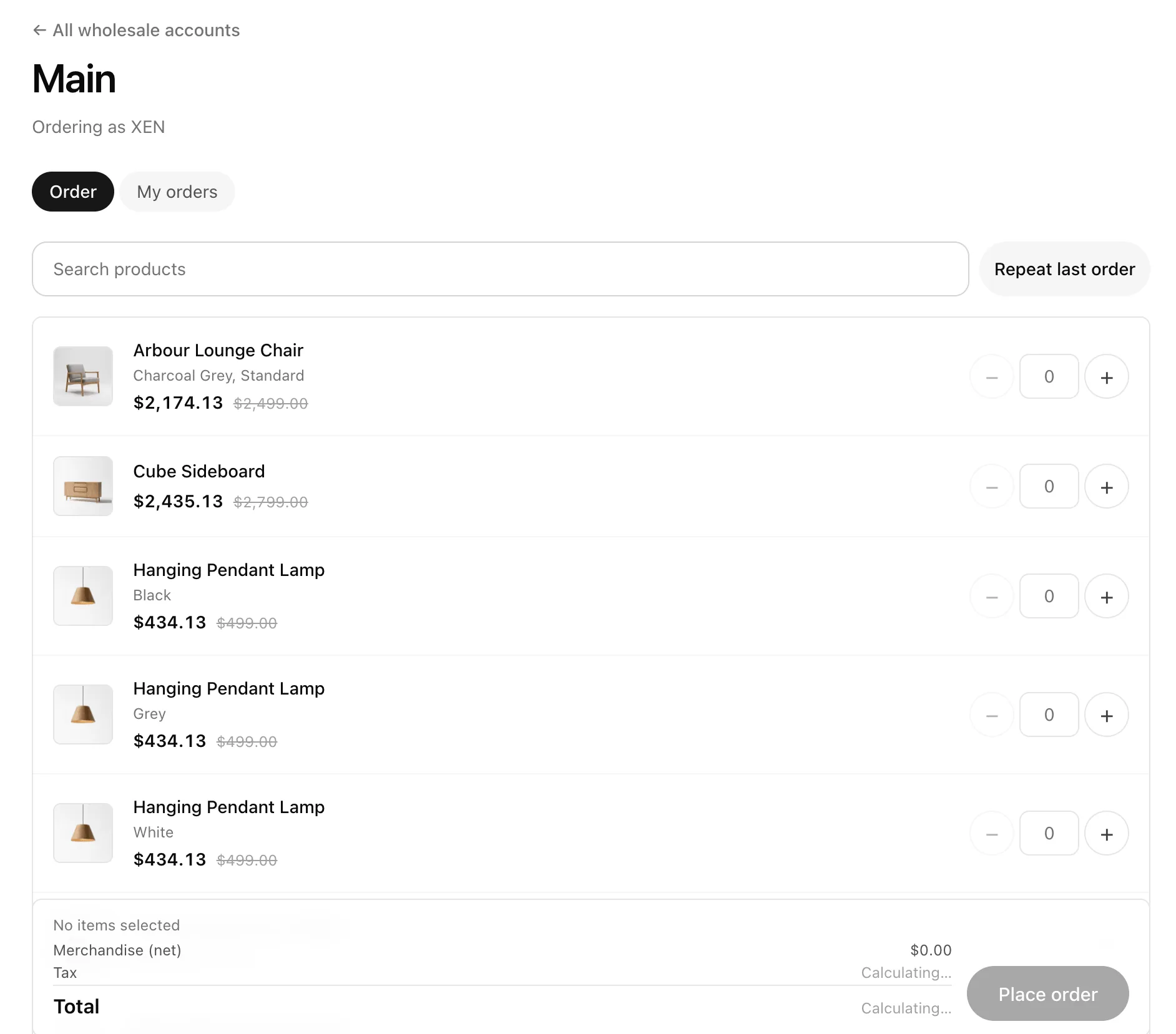
Order again offers to refill the basket from their last wholesale order – naming its number, date, and item count – but only while the basket is empty, so it can never silently replace an order they're already building. That's the fastest way to handle a weekly restock.
Tip: If a product is out of stock, the line says "Out of stock – the store will confirm availability". Buyers can't order more than you have in stock: a line asking for more is marked "only 4 left", and the panel lists each one by product and variant with a one-click Set to 4 or Remove. The basket is saved in the buyer's browser, so closing the tab doesn't empty it.
Show clients only products in stock
By default your clients see every published product. To show them only what you can actually deliver, open Settings → Modules → Wholesale and switch on Show clients only products in stock. Products with no stock are then hidden from the panel and from "Order again", and clients can't order them from their panel or through the API.
Products whose stock you don't track (an empty stock field) are hidden too, because they would sell without a limit. Find them under Inventory → Stock → Not tracked and enter a stock number to offer them. Your own New order form and price lists still list every product.
The setting is off by default, so a store that doesn't track stock doesn't end up with an empty catalog for its buyers.
Place the order
The buyer clicks Place order. It becomes a reserved order:
- Stock is set aside straight away, so nobody else can buy it.
- Nothing is charged yet. The buyer goes to a payment page where they can pay now or later.
- The reservation lasts 14 days by default. You can change this under Settings → Payments → Default reservation expiry (days).
If your prices change while the buyer is building the order, they see "Prices changed – review the updated total" before it goes through.
Order history
An Order history link at the top of the panel lists every order for this buyer, including any you typed up for them. Reserved orders that haven't been paid yet have a Pay button.
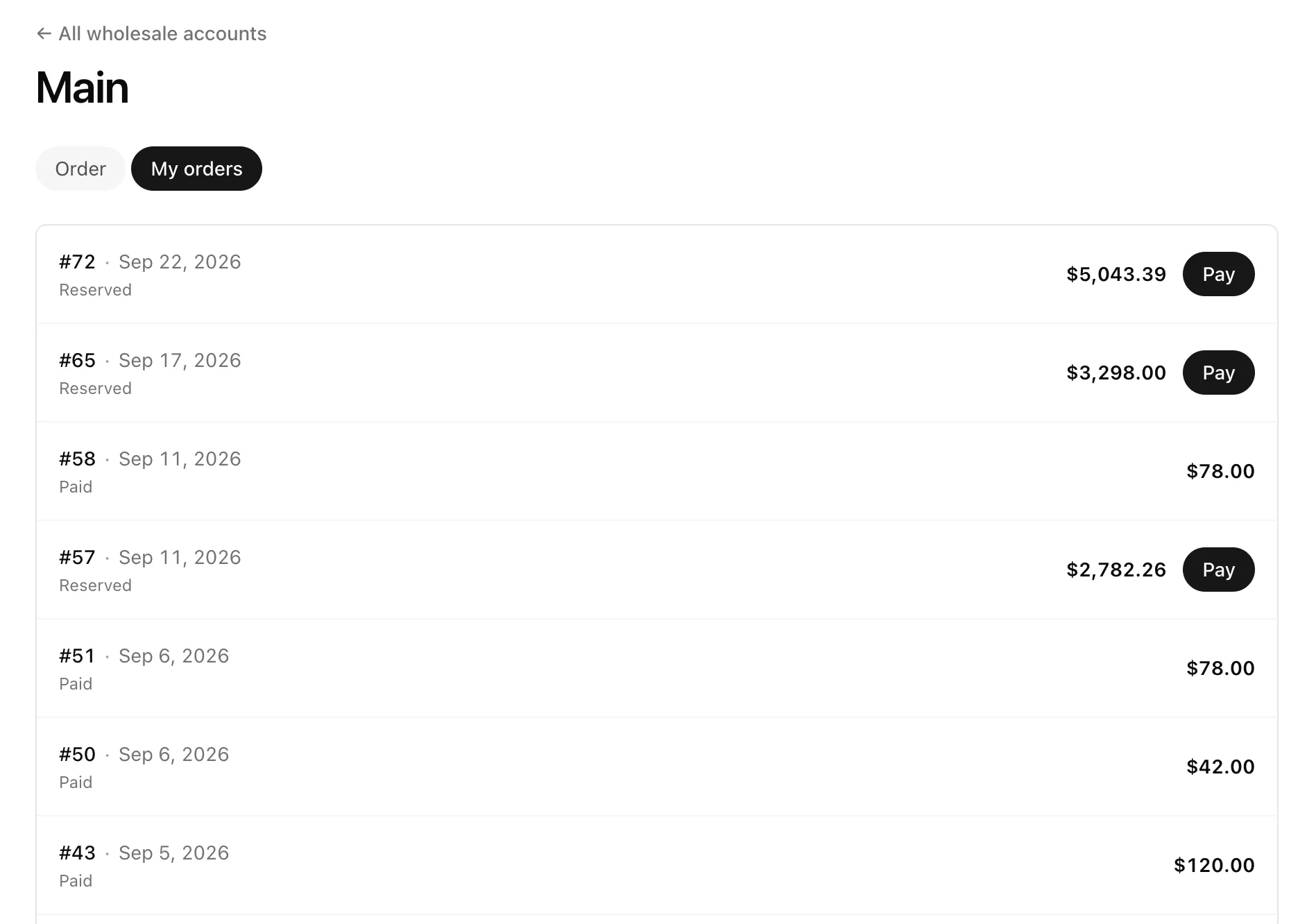
The buyer doesn't have to leave the ordering screen to pay, either: up to five unpaid orders show in an Awaiting payment strip right above the catalog, each with its Reserved until date and a Pay button.
What's not included
- Shipping isn't added to panel orders. Add it yourself when you invoice.
- Discount codes and loyalty points don't apply to wholesale prices.
FAQ
Can buyers order a product I haven't published?
No. The panel only shows products that are published in your catalog.
Do I get notified about a new panel order?
It appears in Orders straight away, with a Wholesale badge and a Reserved status.
What's next
- Collect the money: Get paid for wholesale orders.