Invite team members
Add teammates by email, choose what each person can do with roles, and manage access as your store grows.
As your store grows, you may want help running it. You can invite teammates and decide what each person is allowed to do, so everyone has the access they need – and nothing they don't.
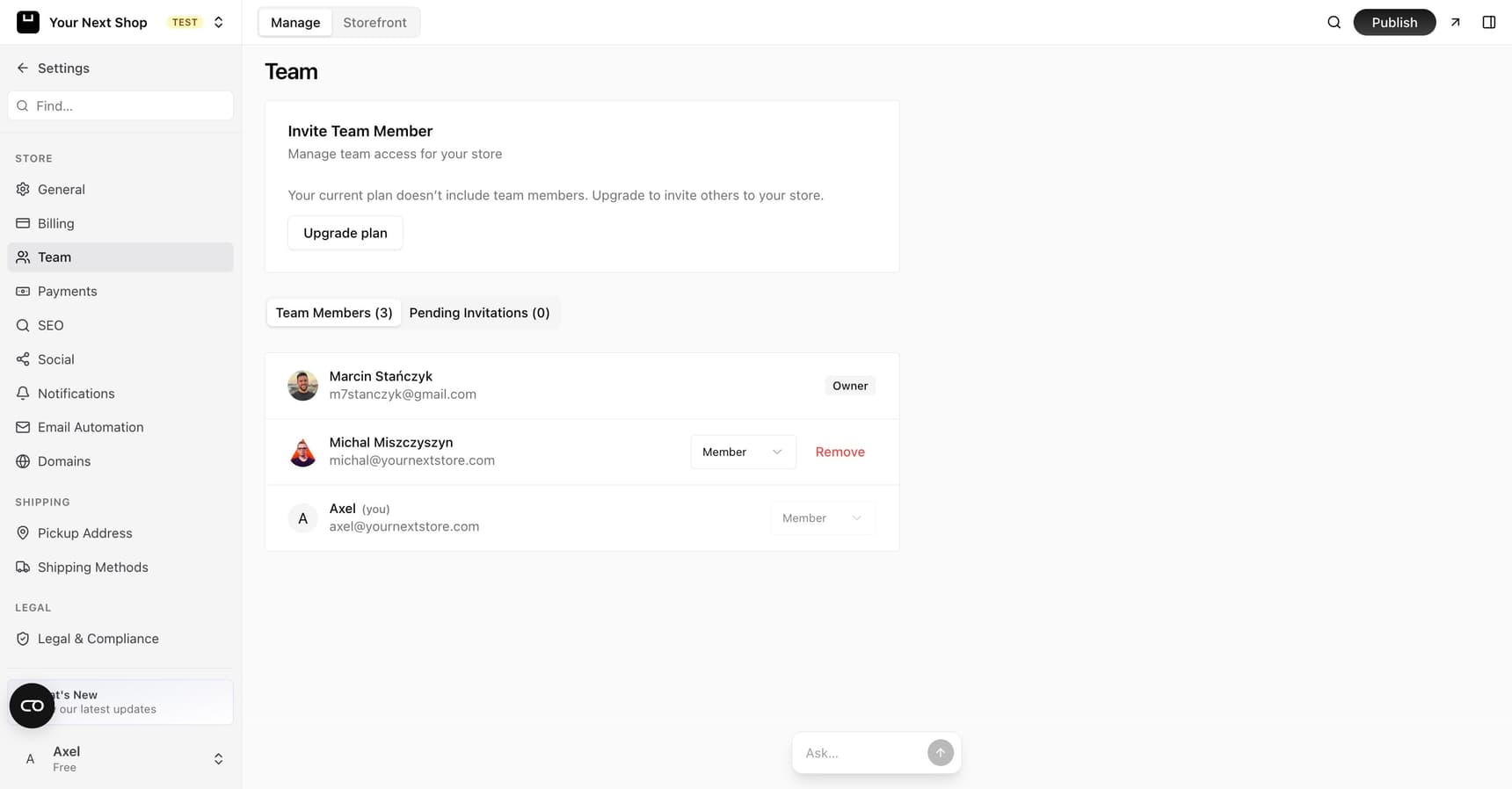
When to add a team member
You don't need a team to run a store, but inviting people helps when:
- Someone helps with orders or customer messages – give them access instead of sharing your login.
- You work with a freelancer or agency – they can make changes directly, then you can adjust or remove their access later.
- You have a business partner – they get their own sign-in and the right level of control.
Caution: Avoid sharing one login between several people. Separate accounts are safer, and roles let you control exactly what each person can do.
Invite someone by email
From your team settings, invite a person by entering their email address. They'll get an invitation to join, and once they accept, they can sign in and start helping.
Each person uses their own email and password, so you always know who did what, and you can change or remove their access at any time.
Choose a role
Each teammate gets a role that controls what they can do:
| Role | What they can do |
|---|---|
| Owner | The account holder with full control over the store – usually the person who created it, and the only one who can transfer ownership |
| Admin | Manage most of the store, like products, orders, and settings |
| Member | Help with day-to-day tasks with more limited access |
Tip: Give people the lowest role that still lets them do their job. You can always upgrade someone later if they need more access.
Which role to choose
- Owner is for you, or whoever ultimately runs the business. It's the account holder with full control, and the only role that can transfer ownership, so keep it to people you fully trust.
- Admin suits a business partner or trusted manager who needs to handle products, orders, and settings day to day.
- Member is ideal for help with specific tasks – like packing orders or answering customers – without giving away the keys to everything.
Remove a member
If someone leaves or no longer needs access, you can remove them from the team. They lose access right away.
It's good practice to review your team now and then and remove anyone who no longer needs to be there – for example, a freelancer whose project has finished.
Transfer ownership
If you're handing the store to someone else, you can transfer ownership to another team member. The new owner takes on full control, including billing.
Note: Transferring ownership is a big change – make sure you trust the person and have agreed on it first.
Tip: Do it with AI – ask the AI Assistant in your dashboard to check who's on your team or what a teammate's role allows, and it can help you keep access tidy.
FAQ
How does someone join my team?
You invite them by email. They receive an invitation, accept it, and then sign in with their own account to start helping.
Can I change someone's role later?
Yes. You can adjust a teammate's role as their responsibilities change – for example, upgrading a Member to an Admin if they take on more.
What happens when I remove someone?
They lose access to your store right away. It's a good idea to remove people as soon as they no longer need access, such as when a freelancer finishes a project.
Is it safe to invite a freelancer or agency?
Yes – and it's safer than sharing your login. Give them the role that fits the work, then change or remove their access when the project ends.
What's next
- Update the contact details your team shares – see Edit your store details.
- Manage your plan, which includes billing – see Manage your plan & billing.