Import products in bulk
Upload many products at once from a spreadsheet — or describe a whole catalog and let AI build it.
If you already have a catalog — or just a lot of products to add — importing from a spreadsheet is far faster than creating each product by hand. You prepare one file, upload it, and your products are created in bulk.
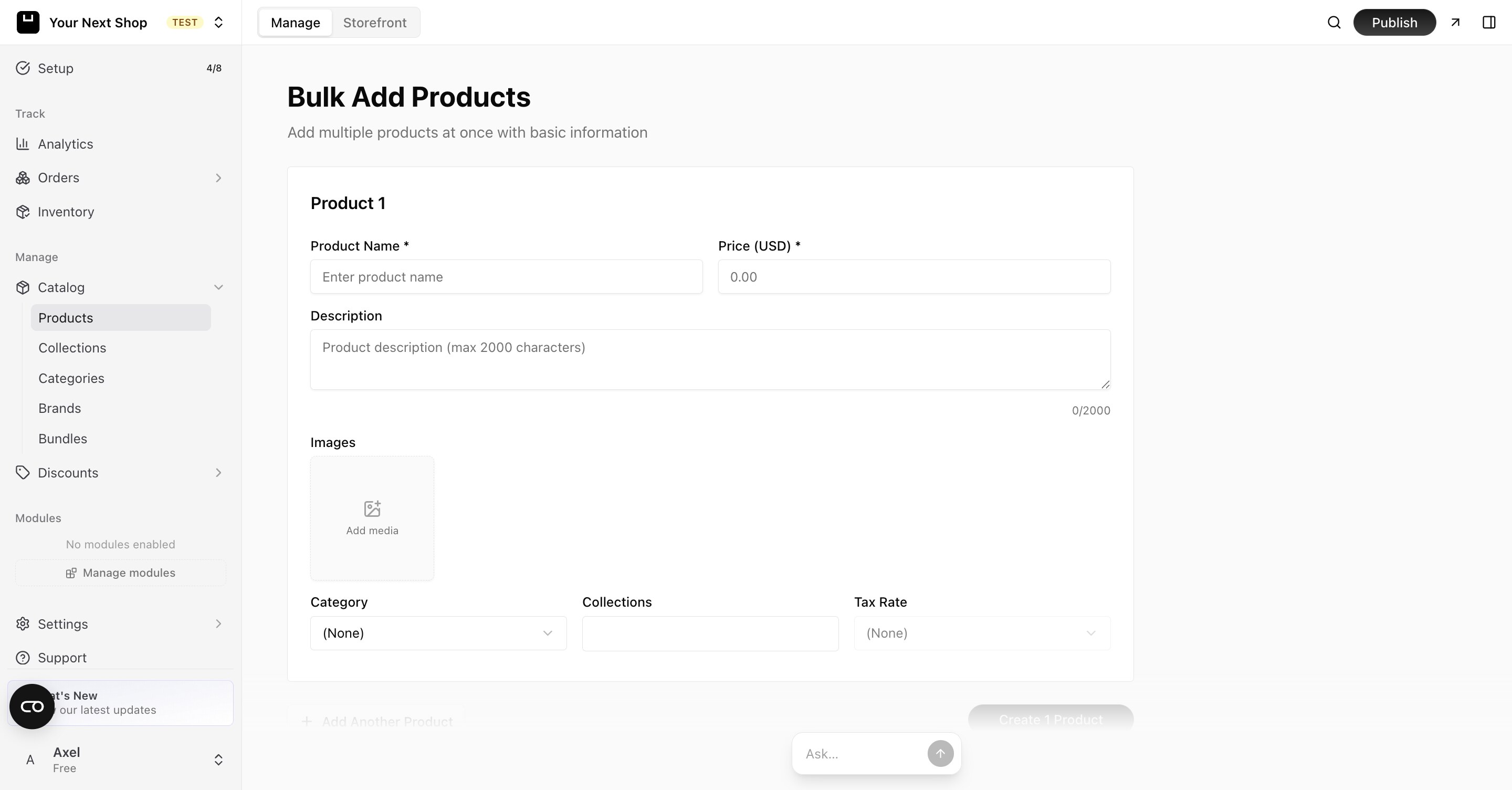
Tip: Do it with AI. Don't have a spreadsheet ready? The AI product wizard can create many products at once from a plain-language description — just tell it what you sell and it builds the products for you. For smaller jobs, the AI Assistant can add products one by one from a quick instruction like "add a blue ceramic mug for $14".
When importing helps
Importing is ideal when you're:
- Moving an existing store to YNS and bringing your whole catalog along.
- Adding a large batch of new products at once.
- Updating many products together rather than one at a time.
If you only have a handful of products, adding them by hand or asking the AI Assistant is often quicker than building a spreadsheet — see Add a product.
Before you start
A little prep makes the import go smoothly:
- Gather your product details in one place — names, prices, and descriptions at minimum.
- Collect your image links if you want photos to come across automatically.
- Decide on categories so products land in the right place once imported.
Step 1: Download the template and fill it in
The import uses a CSV template with predefined column headers, so you don't have to guess the format. Download the provided template (or the example file) and fill in your products — one row per product.
The template includes columns like these:
| Column | What it's for |
|---|---|
| name | The product's name — the only column that's actually required |
| slug | The product's web address handle |
| price | What you sell it for |
| cost | What it costs you per unit — powers profit reporting, never shown to customers |
| sku | Your stock-keeping code for the product |
| barcode | The product's barcode, if you use one |
| images | Links to photos so they import automatically |
| status | Whether the product is published or a draft |
| variant_label / variant_value | Options like size or color (for example, label "Size", value "Small") |
| stock | How many you have |
Keep the column names as they are, but you don't have to keep them all — delete any column you have no data for and the import treats it as blank. Upper or lower case doesn't matter.
Tip: The
costcolumn is the easiest way to get profit reporting going across a whole catalog at once. Export your products, fill the column in, import the file back — see Track profit with product costs.
Tip: Start with a small test file of just a few products. Once you confirm everything imports the way you expect, run the full import with confidence.
What kind of file will it accept?
Whatever your spreadsheet produces, in practice. The import works out the details for itself:
| Accepted | |
|---|---|
| Separator | Comma, semicolon, or tab |
| Quoting | None, some fields, or every field |
| Saved from | Excel, Numbers, Google Sheets, LibreOffice — Windows or Mac line endings both fine |
| Encoding | UTF-8, with or without a byte-order mark |
| Columns | Any subset, in any letter case |
The one thing to watch: numbers need a period as the decimal point — 24.99, not 24,99. If your spreadsheet is set to a locale that writes prices with a comma, change the cell format to plain text or a period-decimal number before you export. Anything that isn't a readable number is reported back to you rather than being imported as a guess.
Step 2: Upload, review, and import
In your dashboard, open Manage, go to Products, and choose to import. Upload your filled-in template, and YNS shows you a preview of the parsed products. Look it over to make sure everything came through as expected, then confirm to import.
Note: Already on Shopify? There's also a Shopify import path that brings your products across — pick that option instead of the CSV template if you're moving from Shopify.
Step 3: Check your products
After importing, check your products list to make sure everything looks right — names, prices, images, and variants. Fix anything that needs a tweak, then publish when you're ready.
Tip: Do it with AI. Imported products that need better descriptions or images? Use the sparkle button to have AI rewrite a description, or Image Studio to generate visuals — see product images.
Common mistakes to avoid
- Skipping the test file. A small test run catches mistakes before they affect your whole catalog.
- Renaming the column headings. You can delete columns you don't need, but a renamed one won't be recognized and its data is dropped.
- Prices with a comma decimal.
24,99isn't read as twenty-four ninety-nine. Fix the cell format before exporting. - Broken image links. Make sure your image links actually open the photo, or images won't come across.
- Forgetting to publish. Imported products may start as drafts — switch them to published when they're ready to sell.
FAQ
What file format do I need?
A CSV file that follows the provided template, with one row per product. Comma, semicolon, and tab-separated files all work, saved from any spreadsheet app on any platform. If you're moving from Shopify, you can use the Shopify import path instead.
My import said it succeeded but nothing appeared.
Re-export the file as CSV from your spreadsheet app and try again — an unusual export can produce a file with no readable rows. Every product that fails now comes back with a reason attached, so the report will tell you what it couldn't read.
Can I import product images and variants too?
Yes. Include image links and variant details (like size or color, each with its own price and stock) as columns, and they'll come across with the import.
What happens if something imports incorrectly?
Just edit the affected products in your list — you can fix any name, price, image, or detail after importing. Running a small test file first helps you catch issues before the full import.
Is there a way to build a catalog without a spreadsheet?
Yes — the AI product wizard can generate many products from a plain-language description, and the AI Assistant can add products one at a time from a simple instruction.
What's next
- Prefer to add products one at a time? See Add a product.
- Keep stock accurate after import with Manage inventory.
- Organize your imported catalog with categories and collections.