Add pickup locations
Let local customers collect their orders in person instead of paying for delivery, perfect for shops, studios, and markets.
If you have a shop, studio, or other place customers can visit, you can let them collect their orders in person instead of paying for delivery.
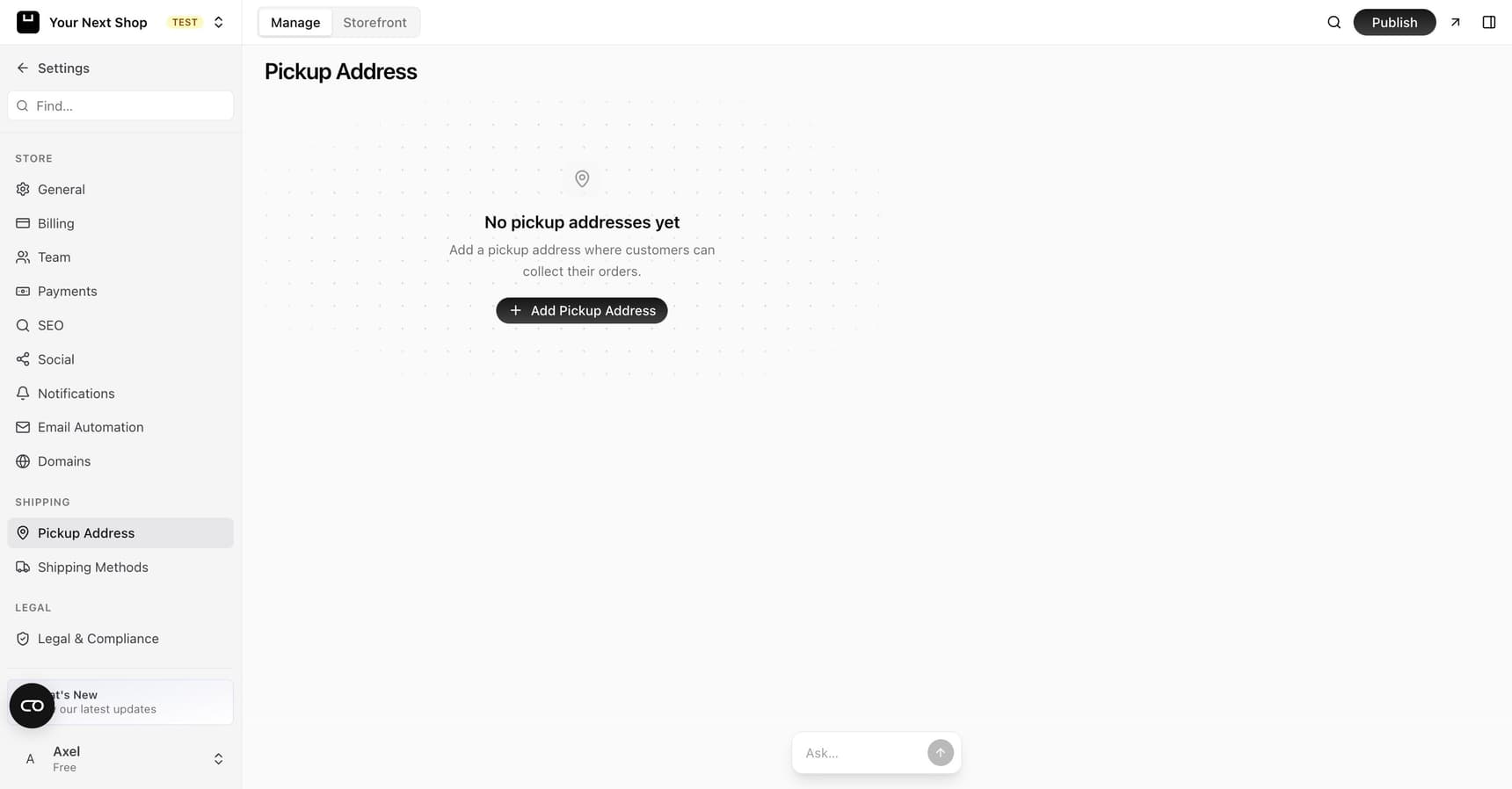
How pickup works
When you add a pickup location, customers can choose local pickup at checkout rather than having their order shipped. They place the order online, then come to collect it from the address you set.
This is a great option for local customers and can save them shipping costs. It also saves you the time and expense of packing and posting, and it brings customers through your door – where they often buy a little more.
When pickup is a good fit
- You have a physical place customers can reach – a shop, studio, café, or workshop.
- You sell to a local audience – neighbours and nearby regulars who'd rather pop in than wait for a parcel.
- You attend markets or events – add the venue as a pickup point so people can collect there.
- Your items are bulky or fragile – collection avoids the cost and risk of shipping large or delicate goods.
Step 1: Add a pickup location
- Go to the shipping settings in your dashboard.
- Choose to add a pickup location.
- Give the location a Label, such as "Main shop" – this is your identifier for the address.
- Enter the address where customers will collect their orders.
- Save.
You can add more than one location if you have several places customers can pick up from.
Tip: Include opening hours or collection instructions in the location's label or your store's content so customers know when to come.
What to include in a pickup location
| Detail | Why it helps |
|---|---|
| Clear label | "Main shop" or "Saturday market stall" tells customers exactly where to go |
| Full address | So customers can find you and add it to their maps |
| Opening hours | Note when collection is possible, so people don't arrive to a locked door |
| Collection instructions | Anything useful – which entrance, who to ask for, or to bring their order number |
Step 2: Customers choose pickup at checkout
Once a pickup location is set up, customers see it as an option at checkout. They pick it instead of a delivery method, and no shipping cost is added.
If you have more than one location, customers choose the one that suits them best.
Step 3: Prepare orders for collection
When a pickup order comes in, get it ready and let the customer know it's available to collect. A quick message saying "your order is ready" sets expectations and avoids wasted trips. See Fulfill and ship orders for how to manage and complete orders.
Tip: Do it with AI – ask the AI Assistant in your dashboard to add a pickup location with your shop address, and it will set it up for you.
Best practices
- Keep your hours accurate. Nothing frustrates a customer more than arriving to find you closed. Update them around holidays.
- Confirm when orders are ready. A short "ready to collect" note saves both of you a wasted trip.
- Have a holding spot. Keep collected-but-uncollected orders organised so handover is quick when the customer arrives.
FAQ
Can I offer both pickup and delivery?
Yes. Pickup sits alongside your shipping methods, so customers choose whichever they prefer at checkout. See Set up shipping methods to add delivery options too.
Is there a delivery cost for pickup orders?
No. When a customer chooses pickup, no shipping charge is added to their order – they're collecting it themselves.
Can I have more than one pickup location?
Yes. Add as many as you need, and customers pick the one that's most convenient at checkout.
How do customers know when their order is ready?
You let them know once it's prepared, the same way you'd update them on any order. Keeping them informed makes collection smooth and avoids early or wasted trips.
What's next
- Offer delivery too? See Set up shipping methods.
- Reward bigger orders – see Offer free shipping.
- Manage orders once they come in – see Fulfill and ship orders.