Connect a custom domain
Point your own web address, like yourbrand.com, at your store for a more professional, trusted, and memorable storefront.
A custom domain is your own web address — something like yourbrand.com — instead of the free .yns.store one. Connecting it makes your store look more professional and helps customers remember and trust you.
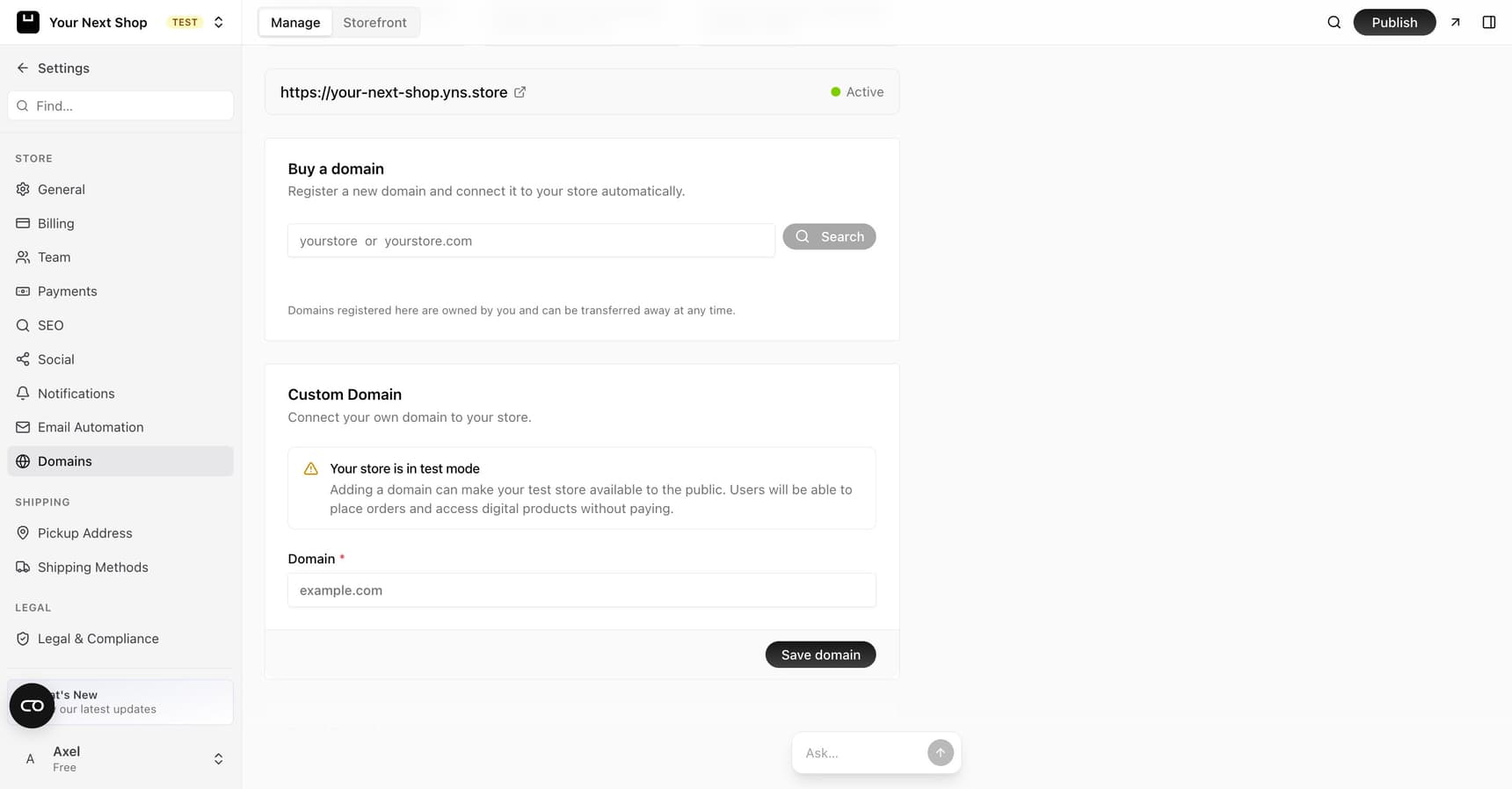
Why use a custom domain
- It's more memorable and on-brand than a free address.
- It builds trust with customers.
- It's yours to keep, even as your store grows.
- It looks consistent across your store, emails, and social profiles.
Before you start
When it comes to your web address, you have options: keep using the free .yns.store address, buy a new domain through YNS, or connect a domain you already own. This guide covers the last one — connecting a domain you already bought from a domain provider (also called a registrar), the companies where you purchase and manage web addresses.
To follow the steps below you'll need:
- A domain you've bought — for example
yourbrand.com. - Your login for the domain provider — the account where you manage that domain, so you can update its settings.
- A few minutes now, plus a little patience — the final connection can take some time to take effect (more on that below).
Note: A couple of helpful terms. A registrar (or domain provider) is the company you bought your domain from. DNS records are small settings stored with your domain that tell the internet where your website lives — think of them as the address book of the internet.
How to connect your domain
- Enter your domain — in your dashboard, open your settings and add the domain you own.
- Add the records you're given — YNS will show you a few small settings, called DNS records. Think of DNS as the address book of the internet: these records tell the world that your domain should point to your store.
- Add them at your domain provider — log in to the company where you bought your domain and copy the records into their settings. Their help pages usually have step-by-step instructions for adding DNS records.
- Wait for verification — once the records are in place, YNS checks them and connects your domain automatically.
Caution: Copy the records exactly as shown — a single wrong or missing character means the connection won't verify. Copy and paste rather than typing them by hand, and don't add extra spaces.
Alternative: let YNS manage your DNS for you
If you'd rather not copy DNS records by hand, some stores can move DNS management to YNS instead – look for Move your domain to YNS next to the regular Connect a domain yourself option in your domain settings. It's a good fit if you don't already rely on your provider's DNS for other things like email.
Here's how it's different: instead of adding individual records yourself, you change your domain's nameservers once at your registrar, and YNS takes it from there.
- Enter your domain and YNS scans the DNS records currently set up for it.
- Check the list it found – confirm it's complete, or tell YNS you'll add anything missing yourself afterward. Anything not on the list – including email records like MX, SPF, DKIM, and DMARC – stops working after the move unless you re-add it.
- Change your nameservers at your registrar to the two YNS gives you. This is the one change you make outside of YNS.
- Wait for the switch – YNS keeps checking in the background and turns on management automatically once it detects the new nameservers, usually within a day.
Caution: If your registrar has DNSSEC turned on for the domain, turn it off before changing nameservers, or the domain will stop resolving.
You can cancel the move at any point before you change nameservers, and your domain's DNS stays exactly where it already was.
Where DNS records live
The records always go in at your domain provider, not in YNS. YNS shows you what to add and then checks for it, but only you can sign in to your registrar to enter the records. YNS never changes settings at your provider for you — that step is always yours to do.
Most providers have a section called something like "DNS", "DNS settings", or "Manage DNS". If you can't find it, search your provider's name plus "add DNS record", or check their support pages.
Secure https is automatic
Once your domain is verified, secure https is set up for you automatically — no extra steps needed. Customers will see the padlock in their browser and can shop with confidence.
Certificate setup is also monitored on an ongoing basis, so if it doesn't complete right away — for example because your domain was still finishing verification at that exact moment — it's detected and repaired automatically, no need to reconnect anything yourself.
Note: Changes you make at your domain provider can take some time to spread across the internet — sometimes up to a day. If your domain isn't connected right away, give it a little time and check back.
Tip: Do it with AI — the AI Assistant in your dashboard can walk you through the steps and answer questions like "what do I do at my domain provider?". Keep in mind it can't sign in to your registrar for you — you'll still need to add the DNS records there yourself.
If your domain isn't connecting
Most connection problems come down to the records, so it's worth a careful check:
- Double-check the records. Compare what's at your provider against what YNS shows, character by character. Mismatches are the most common cause.
- Give it time. DNS changes can take up to a day to spread. If everything looks right, wait and check back later.
- Make sure you saved at your provider. Some providers need you to confirm or publish changes before they take effect.
- Watch for duplicate records. An old, conflicting record left over from a previous setup can block the new one.
FAQ
Do I buy my domain through YNS?
You can do either: buy a new domain through YNS, or connect one you already bought elsewhere. This guide covers connecting a domain you already own — you'll add the DNS records YNS gives you at the domain provider where you manage it.
Does YNS change my domain's settings automatically?
No. YNS shows you the DNS records to add and then verifies them, but you add those records yourself at your domain provider. YNS never signs in to your registrar or edits its settings for you.
How long does it take to connect?
Often quickly, but DNS changes can take up to a day to spread across the internet. If it's not live straight away, give it time before assuming something's wrong.
Will my free .yns.store address still work?
Yes. Your free address keeps working alongside your custom domain, so any links you've already shared stay valid. See Your free store address.
Do I need to set up security myself?
No. Once your domain is verified, secure https is added for you automatically, so customers see the padlock and can shop safely.
What's the difference between connecting a domain and moving it to YNS?
Connecting a domain keeps DNS at your current provider – you add a few records and everything else stays where it is. Moving your domain to YNS changes who manages DNS entirely: you switch nameservers once at your registrar, and YNS then handles the records for you, including keeping certificates and the store address working. Moving it is only offered for some stores today.
What's next
- New to addresses? See Your free store address.
- Make sure your store is ready — see Publish and go live.
- Keep your store details consistent — see Edit your store details.