> **Po polsku?** [Przeczytaj ten przewodnik po polsku](/pl/help/wholesale/buyer-guide).
A store you buy from has given you a wholesale account. That means prices agreed just for you and a private panel where you can order whenever you need to. The store runs on Your Next Store (YNS), so you sign in with a free YNS account at **id.yns.store**. There's no password to set up.
## 1. Open your invitation
Look for an email from the store with a subject like "Blue Bean Roasters invited you to order wholesale". Click **Open wholesale panel**.
No email? Check your spam folder, or ask the store for your **buyer panel link**. It takes you to the same place.
## 2. Sign in with a code
1. Your email address is already filled in. Click **Continue**.
2. You'll get a **6-digit code** by email, with the subject "Your code".
3. Enter it and click **Verify and continue**.
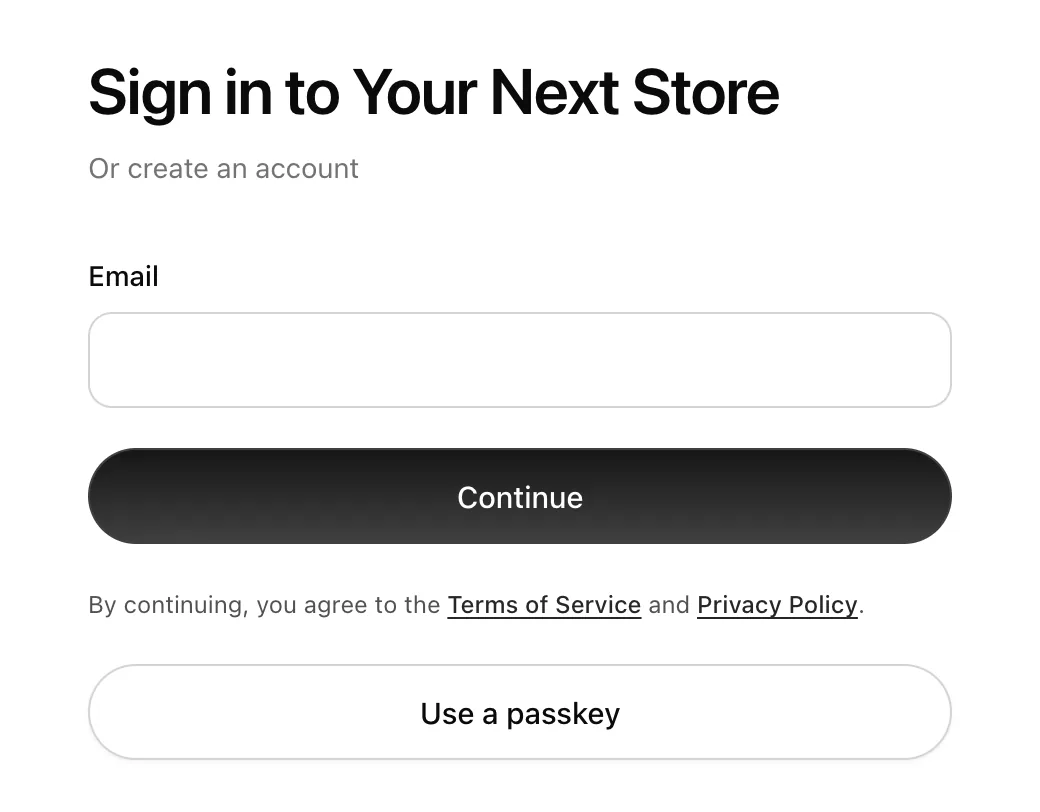 The code works for 5 minutes, only once. If it expires, request a new one. It doesn't matter whether you already have a YNS account: the same steps sign you in or create one.
> **Use the email the store invited.** Your prices are tied to that exact address. If you sign in with another one, you'll see "No wholesale accounts yet".
To sign in faster next time, click **Create a passkey** when it's offered. After that, **Use a passkey** lets you in with Face ID, Touch ID or your device PIN, without an email code.
## 3. Add your business details
Open **Profile → Business** and fill in your **Company**, **Tax ID**, **Billing address** and **Phone**. The store sees your company name, and these details go on your orders as the billing address. Do this once, before your first order.
## 4. Build your order
Your panel opens on the **Order** tab and says **Ordering as** followed by your company name.
The code works for 5 minutes, only once. If it expires, request a new one. It doesn't matter whether you already have a YNS account: the same steps sign you in or create one.
> **Use the email the store invited.** Your prices are tied to that exact address. If you sign in with another one, you'll see "No wholesale accounts yet".
To sign in faster next time, click **Create a passkey** when it's offered. After that, **Use a passkey** lets you in with Face ID, Touch ID or your device PIN, without an email code.
## 3. Add your business details
Open **Profile → Business** and fill in your **Company**, **Tax ID**, **Billing address** and **Phone**. The store sees your company name, and these details go on your orders as the billing address. Do this once, before your first order.
## 4. Build your order
Your panel opens on the **Order** tab and says **Ordering as** followed by your company name.
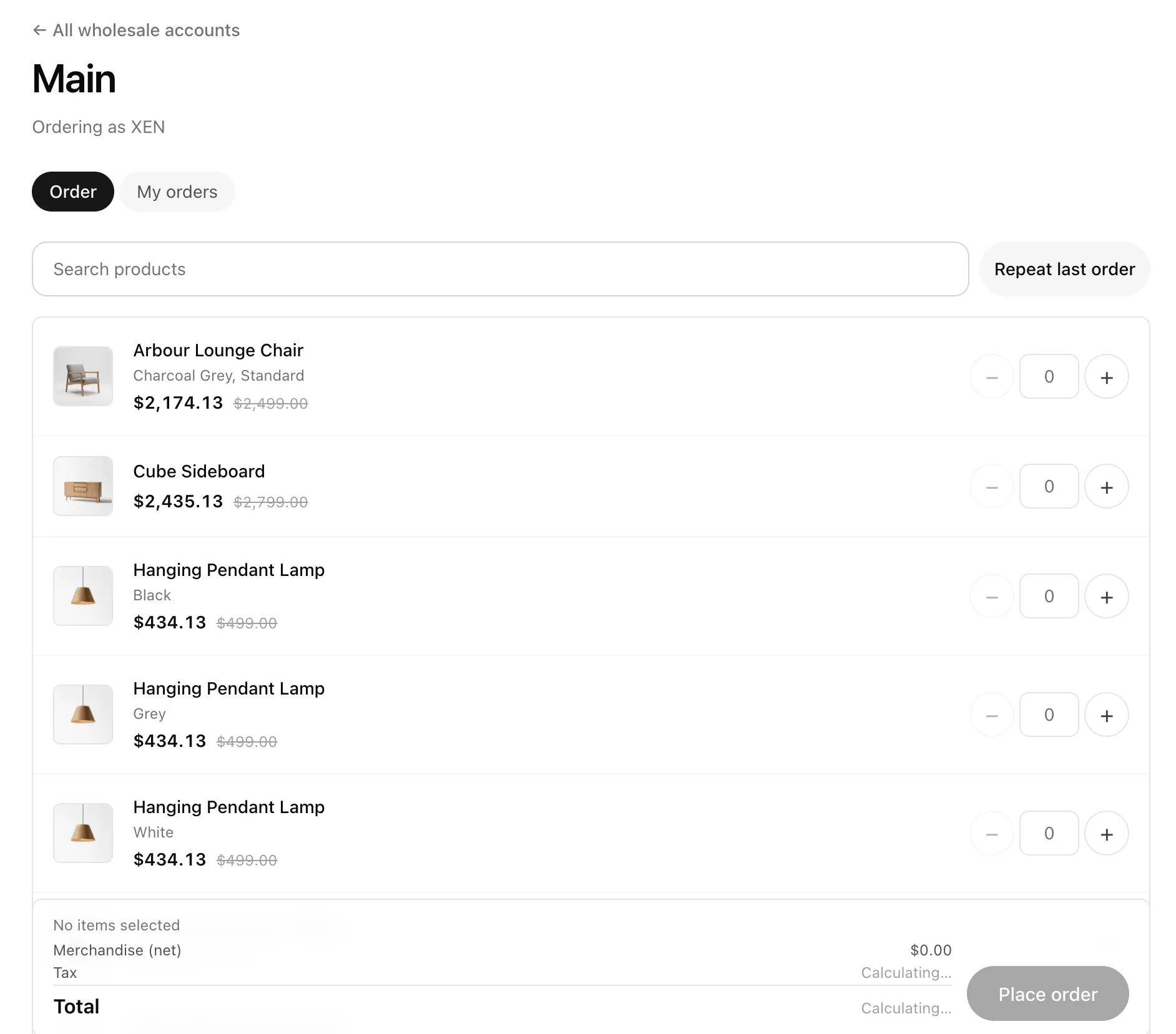 - **Find products** with **Search products**. Each line shows your price, with the regular retail price crossed out next to it.
- **Set quantities** with the **+** and **–** buttons, or type a number.
- **Reorder in one click.** **Repeat last order** fills in everything from your previous order, ready to adjust.
- **Check the totals** at the bottom: **Merchandise (net)**, **Tax** and **Total**. Your prices are before tax, and tax is added on top.
If a line says "Out of stock – the store will confirm availability", you can't order more than the store has in stock right now.
## 5. Place the order
Click **Place order**. Your items are **reserved** straight away: the stock is set aside for you, and nothing is charged yet. The reservation usually lasts 14 days, and the payment page shows the exact date.
If prices change while you're building the order, you'll see "Prices changed – review the updated total" before it goes through.
## 6. Pay
After placing the order you'll see its payment page. It shows your items, the total, and **Reserved until** with the date.
- **Find products** with **Search products**. Each line shows your price, with the regular retail price crossed out next to it.
- **Set quantities** with the **+** and **–** buttons, or type a number.
- **Reorder in one click.** **Repeat last order** fills in everything from your previous order, ready to adjust.
- **Check the totals** at the bottom: **Merchandise (net)**, **Tax** and **Total**. Your prices are before tax, and tax is added on top.
If a line says "Out of stock – the store will confirm availability", you can't order more than the store has in stock right now.
## 5. Place the order
Click **Place order**. Your items are **reserved** straight away: the stock is set aside for you, and nothing is charged yet. The reservation usually lasts 14 days, and the payment page shows the exact date.
If prices change while you're building the order, you'll see "Prices changed – review the updated total" before it goes through.
## 6. Pay
After placing the order you'll see its payment page. It shows your items, the total, and **Reserved until** with the date.
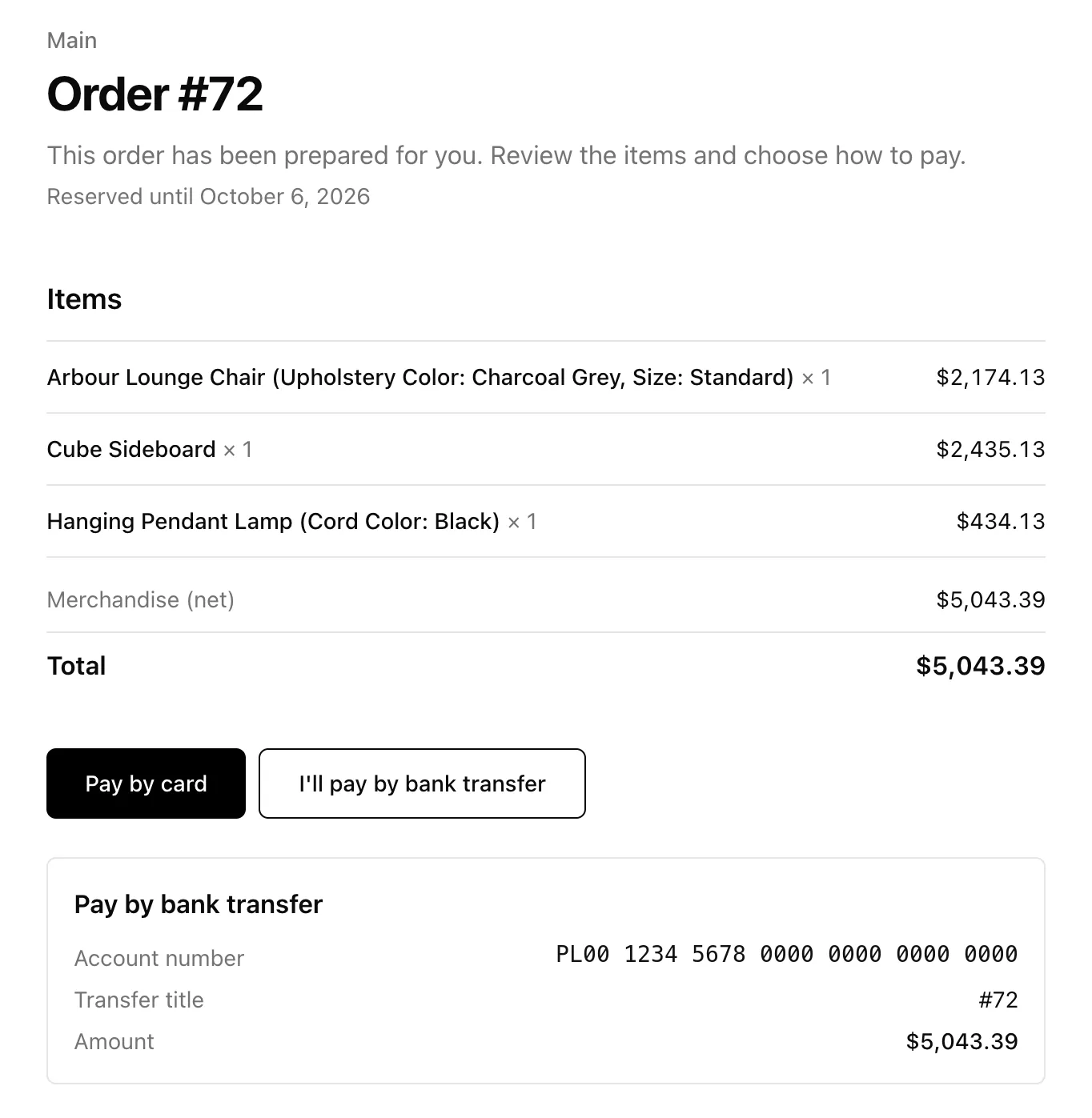 Depending on what the store accepts, you can:
- **Pay by card** – pay securely online, right away.
- **Pay by bank transfer** – click **I'll pay by bank transfer** to see the account number, the transfer title to use (your order number), and the amount.
If neither option shows, the page says "Contact the seller to arrange payment". Settle up with the store the way you've agreed. They'll mark the order paid once they receive the money.
You don't have to pay immediately. You can come back to it any time before the reservation ends.
## 7. Track your orders
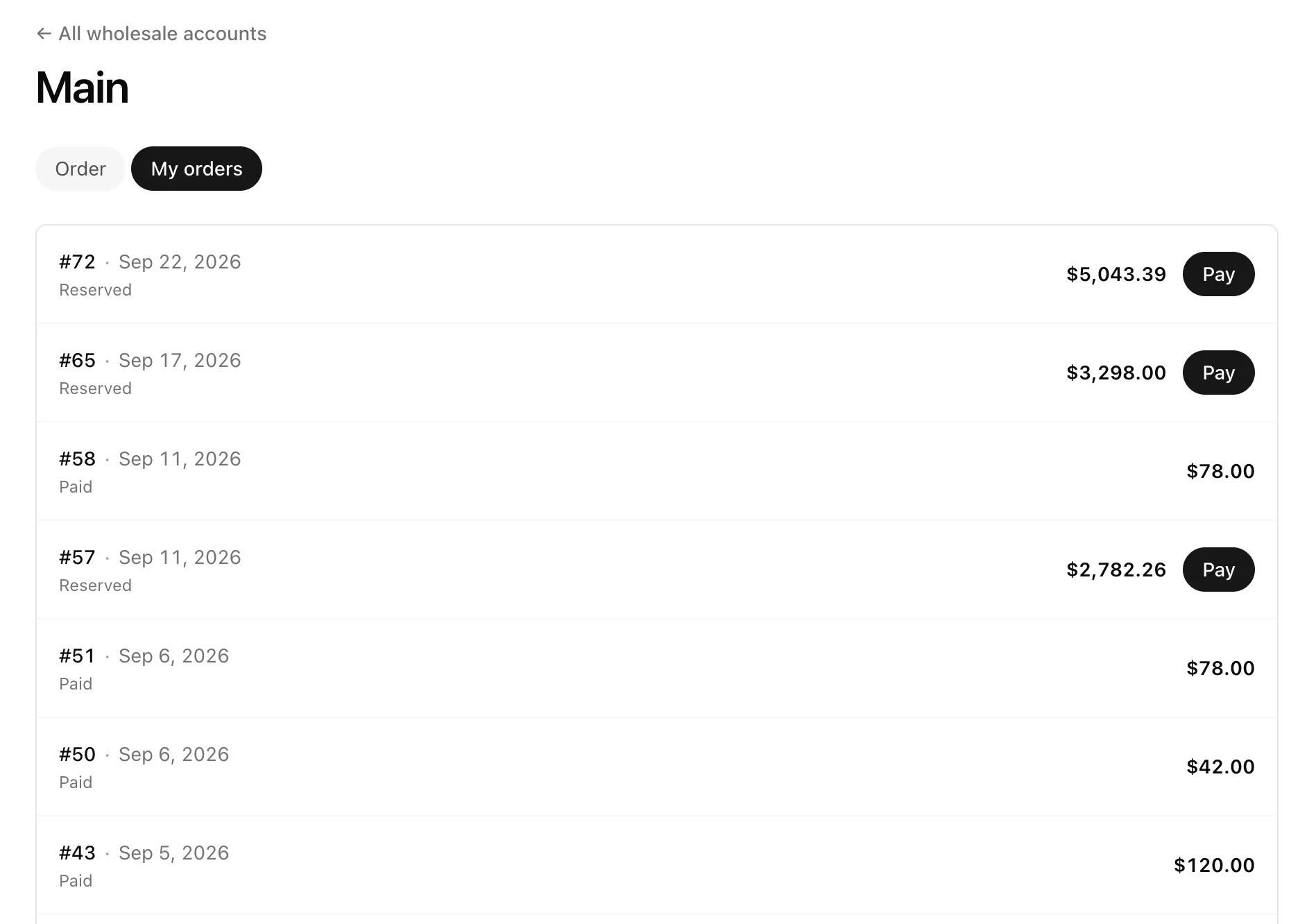
The **My orders** tab lists every order on your account, including ones the store typed up for you after a phone call or email. Orders that still need paying have a **Pay** button.
Depending on what the store accepts, you can:
- **Pay by card** – pay securely online, right away.
- **Pay by bank transfer** – click **I'll pay by bank transfer** to see the account number, the transfer title to use (your order number), and the amount.
If neither option shows, the page says "Contact the seller to arrange payment". Settle up with the store the way you've agreed. They'll mark the order paid once they receive the money.
You don't have to pay immediately. You can come back to it any time before the reservation ends.
## 7. Track your orders
The **My orders** tab lists every order on your account, including ones the store typed up for you after a phone call or email. Orders that still need paying have a **Pay** button.
 ## Buying from more than one store
If several stores on YNS have given you wholesale accounts, you'll see a **Wholesale** page after signing in, listing each store. Click **Open ordering panel** for the one you want. **All wholesale accounts** at the top of a panel takes you back to the list.
## FAQ
### I see "No wholesale accounts yet".
You're probably signed in with a different email from the one the store invited. Sign out and sign in with the invited address, or ask the store to update the email on your account.
### Is shipping included?
Not in the panel total. The store adds delivery when it confirms or invoices your order, as you've agreed with them.
### Can I use a discount code?
No. Your wholesale prices are already your deal, so discount codes and loyalty points don't apply.
### What happens if I don't pay in time?
When the reservation ends, the order is cancelled and the items go back on sale. Just place a new order if you still need them.
### Where do I get an invoice?
Ask the store. It issues invoices, and your business details from your profile go on them.
### Can I change an order after placing it?
Contact the store. They can adjust the order or create a new one for you, and it will appear under **My orders**.
## Buying from more than one store
If several stores on YNS have given you wholesale accounts, you'll see a **Wholesale** page after signing in, listing each store. Click **Open ordering panel** for the one you want. **All wholesale accounts** at the top of a panel takes you back to the list.
## FAQ
### I see "No wholesale accounts yet".
You're probably signed in with a different email from the one the store invited. Sign out and sign in with the invited address, or ask the store to update the email on your account.
### Is shipping included?
Not in the panel total. The store adds delivery when it confirms or invoices your order, as you've agreed with them.
### Can I use a discount code?
No. Your wholesale prices are already your deal, so discount codes and loyalty points don't apply.
### What happens if I don't pay in time?
When the reservation ends, the order is cancelled and the items go back on sale. Just place a new order if you still need them.
### Where do I get an invoice?
Ask the store. It issues invoices, and your business details from your profile go on them.
### Can I change an order after placing it?
Contact the store. They can adjust the order or create a new one for you, and it will appear under **My orders**.