A client is a business buyer with a deal. All you need is their email address. They don't need a YNS account yet, because the deal waits for them until they sign in.
## Add a client
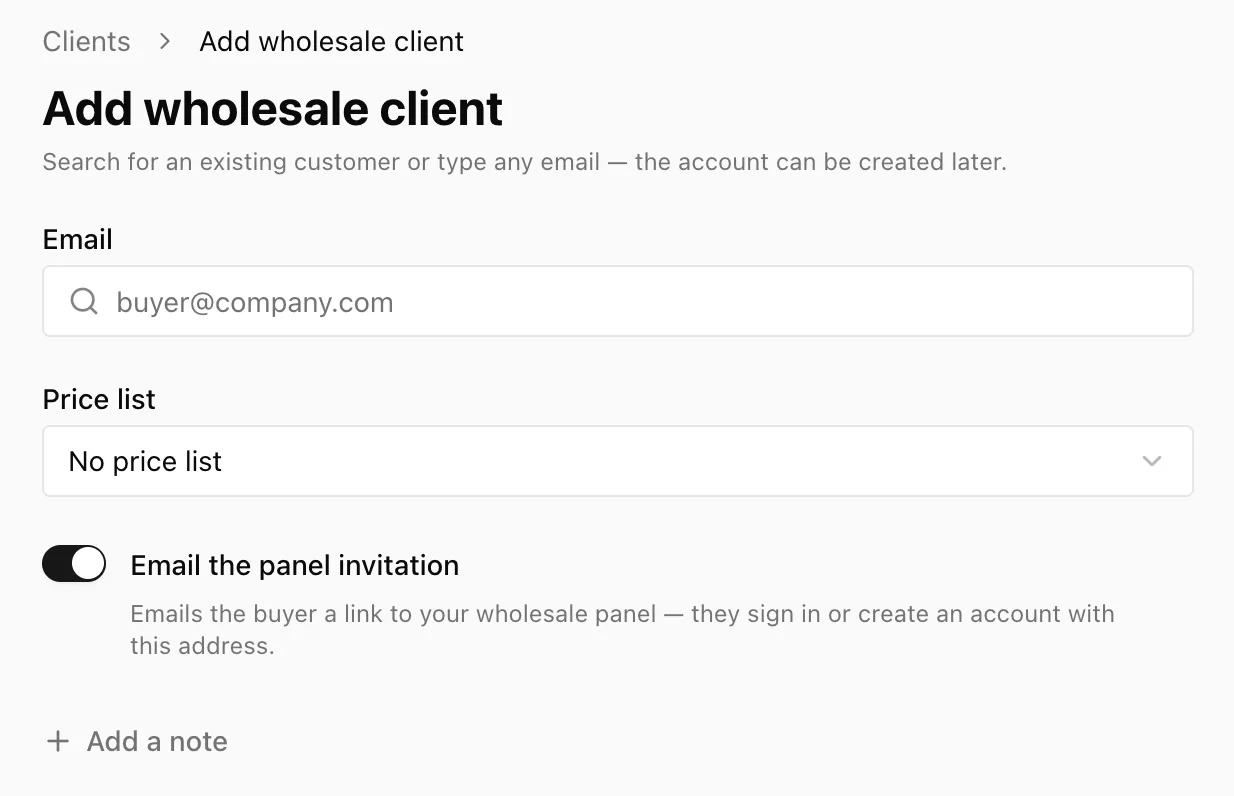
1. Go to **Wholesale → Clients** and click **Add client**.
2. In **Email**, search for an existing customer or type any address, like `buyer@company.com`. A hint tells you what will happen:
- *"… already has an account and sees the deal right away."*
- *"No account for this email yet – the deal applies as soon as the buyer signs up."*
3. Choose a **Price list**, or pick **New list…** to create one on the spot. The discount is shown underneath, with a link to **Set fixed prices per product**.
4. Leave **Email the panel invitation** switched on to send the buyer their link now.
5. Optionally, click **Add a note** to record delivery days, agreed terms, or a contact person.
6. Click **Add client**.
 > **Tip:** Use the buyer's work email, the one they'll actually sign in with. The deal is tied to that exact address.
## The Clients list
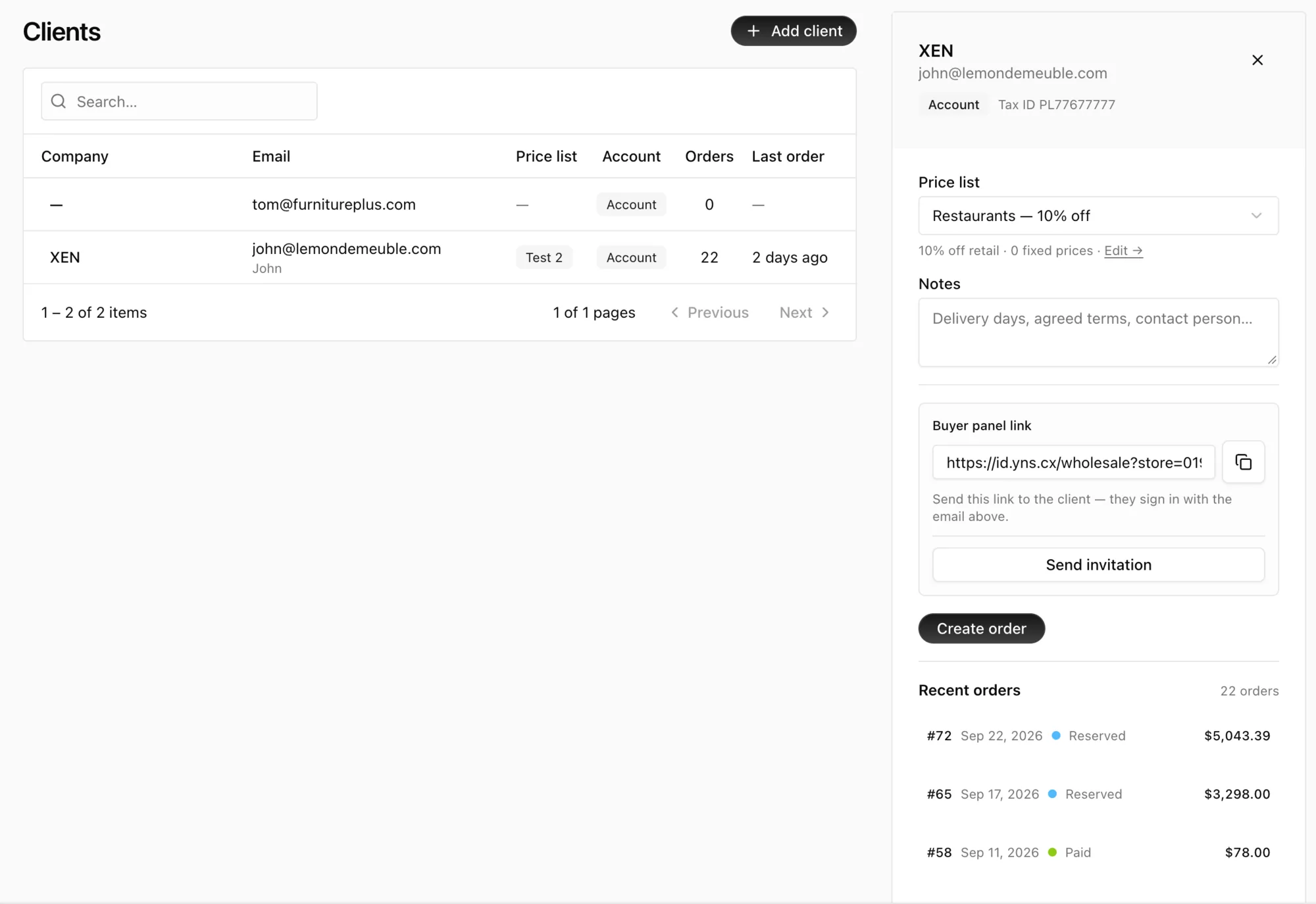
Each row shows the client's **Company**, **Email**, **Price list**, **Orders**, and **Last order**. The **Account** column shows **Not signed up** until the buyer signs in for the first time, and **Account** after that. The link happens automatically.
The company name, tax ID and billing address come from the buyer. They fill them in on their own profile, and you can see them here.
## Change a client's price list
Click a client to open their details on the right.
- **Price list** – pick a different list. The summary shows the discount and how many fixed prices it has. Click **Edit →** to open the list.
- **Notes** – your private notes about this client.
> **Tip:** Use the buyer's work email, the one they'll actually sign in with. The deal is tied to that exact address.
## The Clients list
Each row shows the client's **Company**, **Email**, **Price list**, **Orders**, and **Last order**. The **Account** column shows **Not signed up** until the buyer signs in for the first time, and **Account** after that. The link happens automatically.
The company name, tax ID and billing address come from the buyer. They fill them in on their own profile, and you can see them here.
## Change a client's price list
Click a client to open their details on the right.
- **Price list** – pick a different list. The summary shows the discount and how many fixed prices it has. Click **Edit →** to open the list.
- **Notes** – your private notes about this client.
 Click **Save client**. The new prices apply to the client's next order.
## Invite or re-invite the buyer
From the client's details:
- **Send invitation** emails the buyer again. You can send it as often as you like, and every send appears in your Messages inbox.
- **Copy buyer panel link** copies a link you can paste into your own email or chat. The buyer signs in with the email you added.
The invitation email comes from your store, with a subject like "Blue Bean Roasters invited you to order wholesale", and it has an **Open wholesale panel** button. See [How buyers sign in at id.yns.store](/help/wholesale/buyer-sign-in) for what happens next.
## Archive a client
Click **Archive client** when a business relationship ends. Their negotiated prices stop straight away and they lose access to the panel. Their past orders stay as they are.
## FAQ
### Can a client have no price list?
Yes. They can still use the panel, but they pay your retail prices.
### The buyer never received the invitation.
Check the address on the client, then click **Send invitation** again, or send them the link from **Copy buyer panel link** yourself. Also ask them to check their spam folder.
### Can one buyer order for several of my stores?
Yes. Each store adds them separately, and they choose the store after signing in.
## What's next
- Show your buyer what to expect in [How buyers sign in at id.yns.store](/help/wholesale/buyer-sign-in).
Click **Save client**. The new prices apply to the client's next order.
## Invite or re-invite the buyer
From the client's details:
- **Send invitation** emails the buyer again. You can send it as often as you like, and every send appears in your Messages inbox.
- **Copy buyer panel link** copies a link you can paste into your own email or chat. The buyer signs in with the email you added.
The invitation email comes from your store, with a subject like "Blue Bean Roasters invited you to order wholesale", and it has an **Open wholesale panel** button. See [How buyers sign in at id.yns.store](/help/wholesale/buyer-sign-in) for what happens next.
## Archive a client
Click **Archive client** when a business relationship ends. Their negotiated prices stop straight away and they lose access to the panel. Their past orders stay as they are.
## FAQ
### Can a client have no price list?
Yes. They can still use the panel, but they pay your retail prices.
### The buyer never received the invitation.
Check the address on the client, then click **Send invitation** again, or send them the link from **Copy buyer panel link** yourself. Also ask them to check their spam folder.
### Can one buyer order for several of my stores?
Yes. Each store adds them separately, and they choose the store after signing in.
## What's next
- Show your buyer what to expect in [How buyers sign in at id.yns.store](/help/wholesale/buyer-sign-in).